



8 min read

Defederating GoDaddy 365

Defederating GoDaddy 365


If you bought Microsoft 365 through GoDaddy, you probably love how easy it was to get started, domain, email, and Office apps up and running in minutes.

But as your business grows, you may want more control — over security, Conditional Access, integrations, and licensing flexibility. That’s where defederation comes in.

In this updated 2026 guide, I’ll show you how to move your Microsoft 365 tenant out of GoDaddy’s managed environment in as little as 10 minutes, without losing any email, Teams data, or files.

This video walks you step-by-step through:

⏱️ Why and when to move away from GoDaddy’s managed setup
⚙️ The exact PowerShell command to defederate your domain
👤 Resetting passwords and adding new Microsoft or CSP licenses
🧠 Common FAQs from Reddit and my 100K-view blog post — like MX records, Proofpoint, SharePoint URL renaming, and more
🚀 Lessons from the field to make your transition smooth and risk-free

GoDaddy has published official documentation for this process, and my method builds on that to make it even faster and easier — especially if you’re an IT admin or MSP.

🔗 GoDaddy official documentation: https://www.godaddy.com/help/move-my-...


Summary and Background

Customers can purchase a Microsoft 365 subscription direct with GoDaddy along with their primary domain. When this occurs, GoDaddy federates this domain and tenant, making it unable to transfer under the CSP program or Direct to Microsoft. Moving and defederating this account has been a major pain point and area of confusion which this blog post addresses. 

In the solutions proposed in this guide you can perform the following:

  • Defederate the tenant without migrating
  • Never have to call GoDaddy
  • Keep user accounts vs deleting them
  • Have no downtime

High level-steps:

A. Prepare your End Users

B. Become a Tenant Admin in GoDaddy

C. Remove Federation with GoDaddy

D. Reset Users Passwords

E. Add a CSP Provider or Move Direct to Microsoft

F. Provision Licensing into the Account

G. Remove GoDaddy as Delegated Admin and Remove Enterprise App

H. Cancel GoDaddy Subscription 


Prepare Your End Users

  • Defederating requires users to reset their passwords in order to be able to login to their account. You will need to have a password list to distribute to them or have them provide you passwords beforehand. You could just reset them all to a temporary password after federation and then they can change to whatever they want after. I have a script you can use later in the blog.
  • Define a date and time in which you will be defederating. I recommend during non-business hours even though there is no downtime in mail flow with this solution. Provide end users with this information.
  • Since users may run into activation prompts within their office apps and outlook during the license transition, provide them documentation for how to sign back in after the license switch has taken place. For office apps they can simply go to File>Account>Sign Out>Sign In.
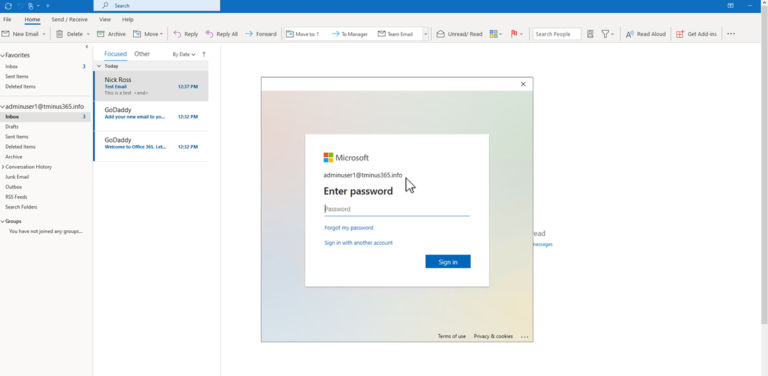
  • In outlook, users will be prompted to re-enter their new password after its changed:

blog_godaddy_defed_1


Become a Tenant Admin in GoDaddy

When a user sets up a 365 account directly with GoDaddy, they set up the initial user as an “admin” user but this user is redirected to the GoDaddy portal when trying to access the admin tab when going to Office.com. For this reason, we need to gain access to the true Global Admin so that we can perform the necessary powershell scripts to defederate the tenant.

  1. Login to Portal.Azure.com with the admin user that was set up when the account was first created and click on the 3 lines in the top left corner
  2. Click on Azure Active Directory. Then click on Users when the new tabs open up
  3. Here you should see a user label with admin@.onmicrosoft.com Ex:

blog_godaddy_defed_2

Click on this user and reset their password. If you already have access to this user, you can disregard this step. 

Once you have copied the temporary password, place it in a notepad and open an incognito window in the browser. In the browser, go to office.com and sign in with that username and temporary password. Establish a new password. With this completed, you now have a user that can run the necessary powershell commands in the future steps.


Remove Federation with GoDaddy

⚠️ Caution - Before you perform this step you want to make sure all users have the passwords you will be resetting as they will not be able to login without that new password.


We can use the following PowerShell cmdlets to defederate the tenant. Note that you need to run PowerShell as administrator. 

Write-Host "Checking for MSGraph module..."

$Module = Get-Module -Name "Microsoft.Graph.Identity.DirectoryManagement" -ListAvailable

if ($Module -eq $null) {

    Write-Host "MSGraph module not found, installing MSGraph"
    Install-Module -Name Microsoft.Graph.Identity.DirectoryManagement
}

Connect-MgGraph -Scopes "Directory.Read.All","Domain.Read.All","Domain.ReadWrite.All","Directory.AccessAsUser.All"
# Enter the Admin credentials from "Become a tenant Admin in GoDaddy"

Get-MgDomain
# See that the domain is “federated”

Update-MgDomain -DomainId "<InsertFederatedDomain>" -Authentication Managed


An example of a DomainId is “tminus365.com”. This would be the domain that was listed as federated that you want to covert to managed.  After this is complete you will get a new commandline. You can run Get-MgDomain again and see that your domain is now “managed”. 

Please Note: ALL domains in the tenant need to be in a managed state for this to work correctly even if one is no longer in use.


Supporting CMDLET docs:


Reset User Passwords

You can do this manually one user at a time if there aren’t many users in the account or you could use a powershell script to bulk update everyone passwords form a CSV file. If you plan to do them manually, then you can simply login to office.com as the admin we derived from section B and now that the tenant is defederated, you will be able to click into the admin tile and access the Users section like you are familiar with. Otherwise, you can connect to Powershell as administrator and run the powershell script below:

Single User Update
# --- Load Graph modules ---
Import-Module Microsoft.Graph.Users -ErrorAction Stop
Import-Module Microsoft.Graph.Authentication -ErrorAction Stop

# --- Connect to Graph ---
Write-Host "Connecting to Microsoft Graph..." -ForegroundColor Cyan
Connect-MgGraph -Scopes "User.ReadWrite.All"

Write-Host $passwordProfile = @{
    Password                      = '<InsertPassword>'
    ForceChangePasswordNextSignIn = $true   # optional
}

Update-MgUser -UserId 'example@domain.com' -PasswordProfile $passwordProfile

 
Multi-User Update
CSV format

Make a CSV like this:

UserPrincipalName,NewPassword
alice@contoso.com,P@ssw0rd123!
bob@contoso.com,Secur3Pwd!
charlie@contoso.com,Hada9200!
  • UserPrincipalName – UPN / sign-in name of the user

  • NewPassword – the new password you want to assign

Script


<#
.SYNOPSIS
Bulk reset user passwords in Entra ID using Microsoft Graph.

.DESCRIPTION
Imports a CSV of users and sets each account's passwordProfile.Password.
Requires: Microsoft.Graph module and User.ReadWrite.All (or Directory.AccessAsUser.All).

.PARAMETER CsvPath
Path to the CSV file containing UserPrincipalName and NewPassword columns.
#>

param(
    [Parameter(Mandatory = $true)]
    [string]$CsvPath
)

# --- Load Graph modules ---
Import-Module Microsoft.Graph.Users -ErrorAction Stop
Import-Module Microsoft.Graph.Authentication -ErrorAction Stop

# --- Connect to Graph ---
Write-Host "Connecting to Microsoft Graph..." -ForegroundColor Cyan
Connect-MgGraph -Scopes "User.ReadWrite.All"

# --- Import CSV ---
if (-not (Test-Path $CsvPath)) {
    throw "CSV file not found at path: $CsvPath"
}

$users = Import-Csv -Path $CsvPath

if (-not $users) {
    throw "CSV file '$CsvPath' contains no rows."
}

Write-Host "Processing $($users.Count) users from CSV..." -ForegroundColor Cyan

$results = @()

foreach ($user in $users) {
    $upn = $user.UserPrincipalName
    $newPassword = $user.NewPassword

    if ([string]::IsNullOrWhiteSpace($upn) -or [string]::IsNullOrWhiteSpace($newPassword)) {
        Write-Warning "Skipping row with missing UserPrincipalName or NewPassword."
        continue
    }

    $passwordProfile = @{
        Password                      = $newPassword
        ForceChangePasswordNextSignIn = $true # set to $false if you don't want this
    }

    try {
        Write-Host "Updating password for $upn ..." -ForegroundColor Yellow

        Update-MgUser -UserId $upn -PasswordProfile $passwordProfile

        $results += [pscustomobject]@{
            UserPrincipalName = $upn
            Status           = "Success"
            Error            = $null
        }
    }
    catch {
        Write-Warning "Failed to update password for $upn : $($_.Exception.Message)"
        $results += [pscustomobject]@{
            UserPrincipalName = $upn
            Status           = "Failed"
            Error            = $_.Exception.Message
        }
    }
}

# --- Output summary ---
Write-Host ""
Write-Host "Bulk password reset completed." -ForegroundColor Green

$results | Format-Table -AutoSize

# Optionally export results to CSV:
# $results | Export-Csv -Path ".\PasswordResetResults.csv" -NoTypeInformationLeveraging the Admin Portal
 
Leveraging the Admin Portal

If you do not want to use PowerShell, you can technically reset users passwords, one by one, in the Entra Admin Center > Users>Select User>Reset Password


Add a new Provider and Provision Licensing

Now that the tenant is defederated, you can add a CSP provider with their delegated admin link or go direct to Microsoft for licensing.

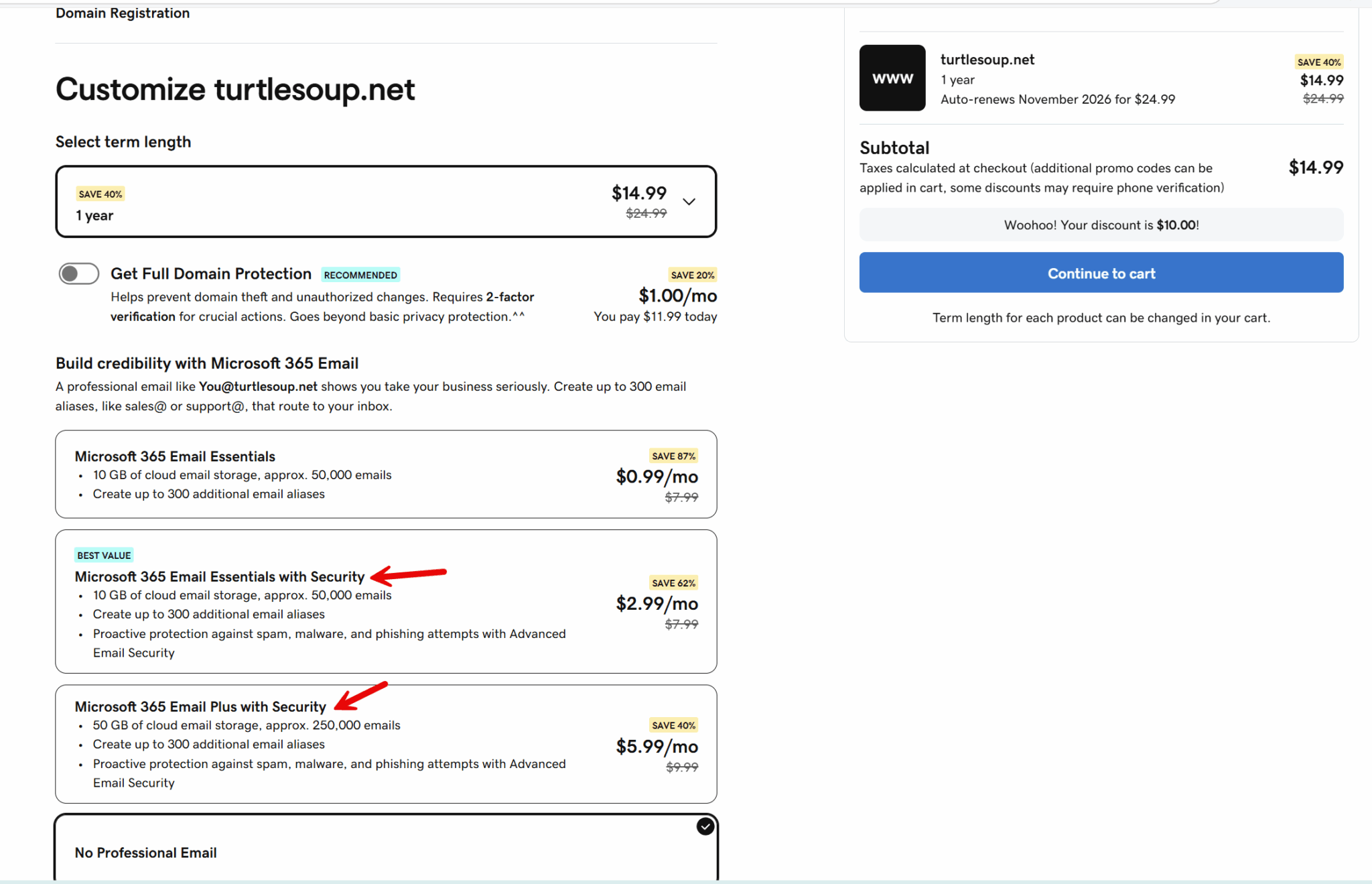
Be sure to check if your existing GoDaddy licensing includes email security.

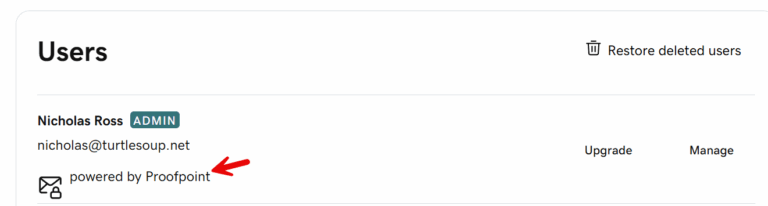
GoDaddy leverages Proofpoint for products bundled with Email Security. Additional Configuration is required. See Email security section below.


For CSP: 

Paste the appropriate link in a browser and sign into the tenant with the Global Admin credentials if you are not already logged in. Accept the relationship. After the acceptance, reload the page and you will see a new CSP listed. 

Order licensing for this customer. If you are not changing the subscription, then all you would need to do is provision the same amount of seats as you have today, remove them as delegated admin, and cancel with GoDaddy. There is no other action that would be required. License ownership would transfer and there will be no downtime for users.

If you are changing the subscriptions that are assigned to users (i.e. you are moving them from Business Standard to Business Premium as an example) you will need to perform the following steps:

  1. Order the licensing from CSP
  2. See the licensing provisioned in the 365 Tenant for this customer under Billing>Your Products
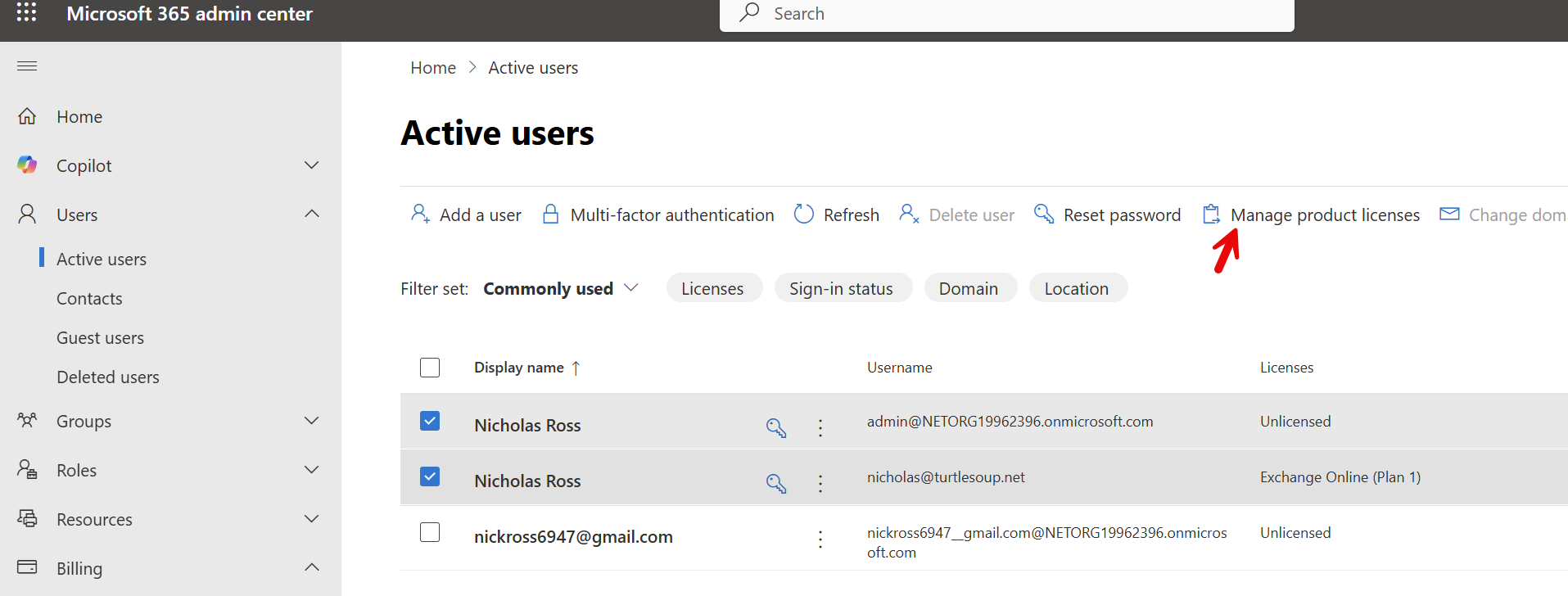
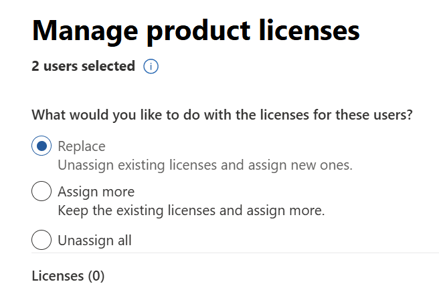
  3. Go to Users>Active Users and bulk assign the new licensing from CSP and unassign the licensing from GoDadddy.

blog_godaddy_defed_3

blog_godaddy_defed_4

For Microsoft Direct:
  1. In the Microsoft Admin Portal, go to Billing>Purchase Services
  2. Purchase the licensing you want to have for your users 
  3. Follow the same steps as CSP to Assign licenses to users if you have changed their subscription type. (i.e. Moving from Business Standard to Business Premium). 


Email Security (i.e. Proofpoint Considerations)

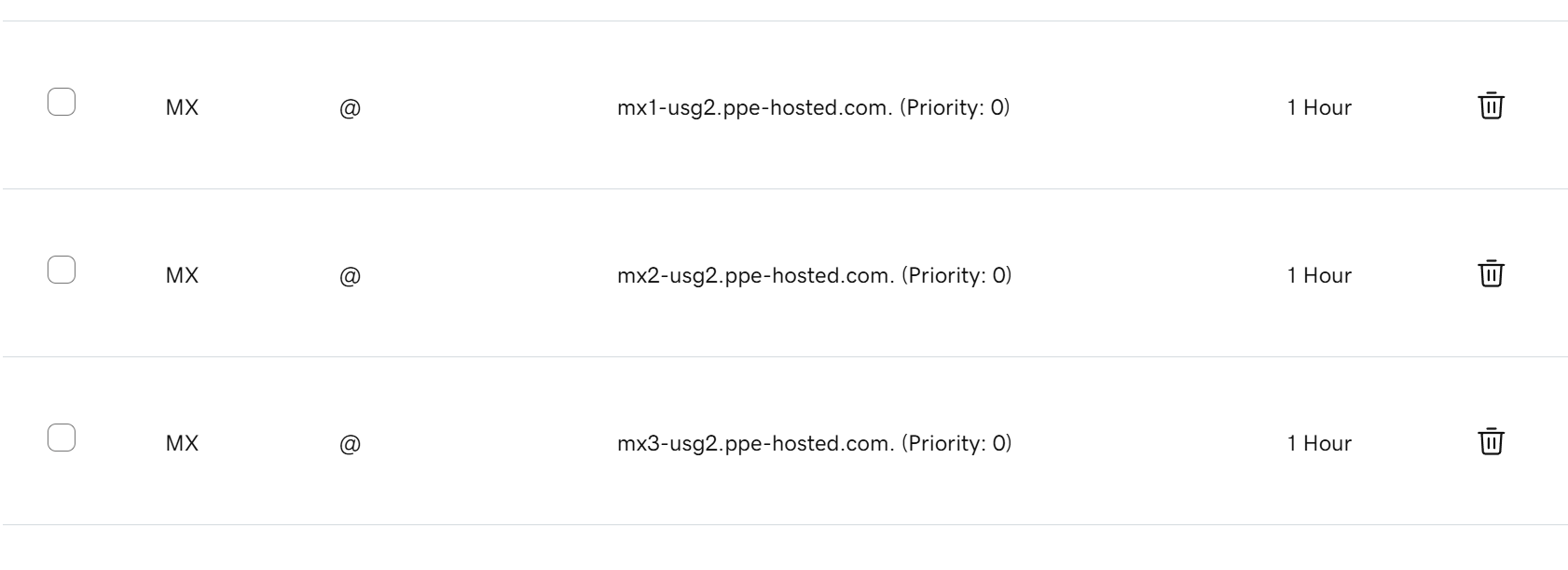
If you have a plan with GoDaddy that includes email security, they layer in Proofpoint. Proofpoint is redirecting mailflow to their portal via the MX Record. If you have this plan and do not change MX Records after cancellation, EMAIL WILL GO DOWN. Note that if you do not have one of these plans you do NOT have to follow these steps.

Where to check:

  1. Go to My Account | Billing in GoDaddy.
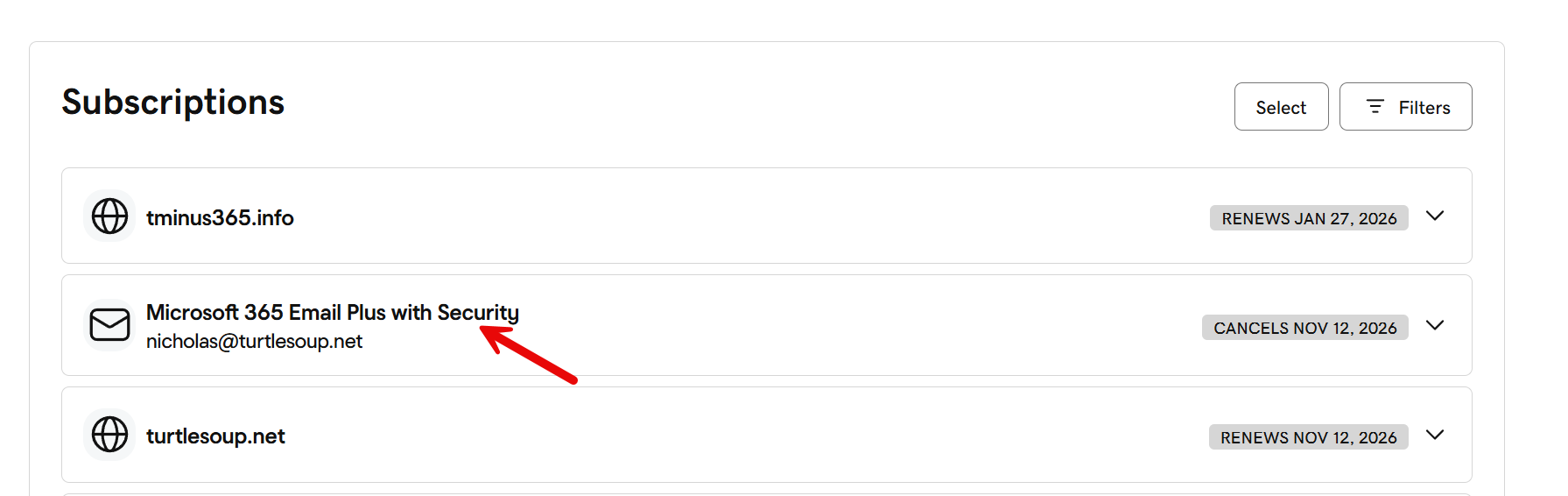
  2. Look for a subscription that has email + security. EXs: 

blog_godaddy_defed_5
blog_godaddy_defed_7

blog_godaddy_defed_8


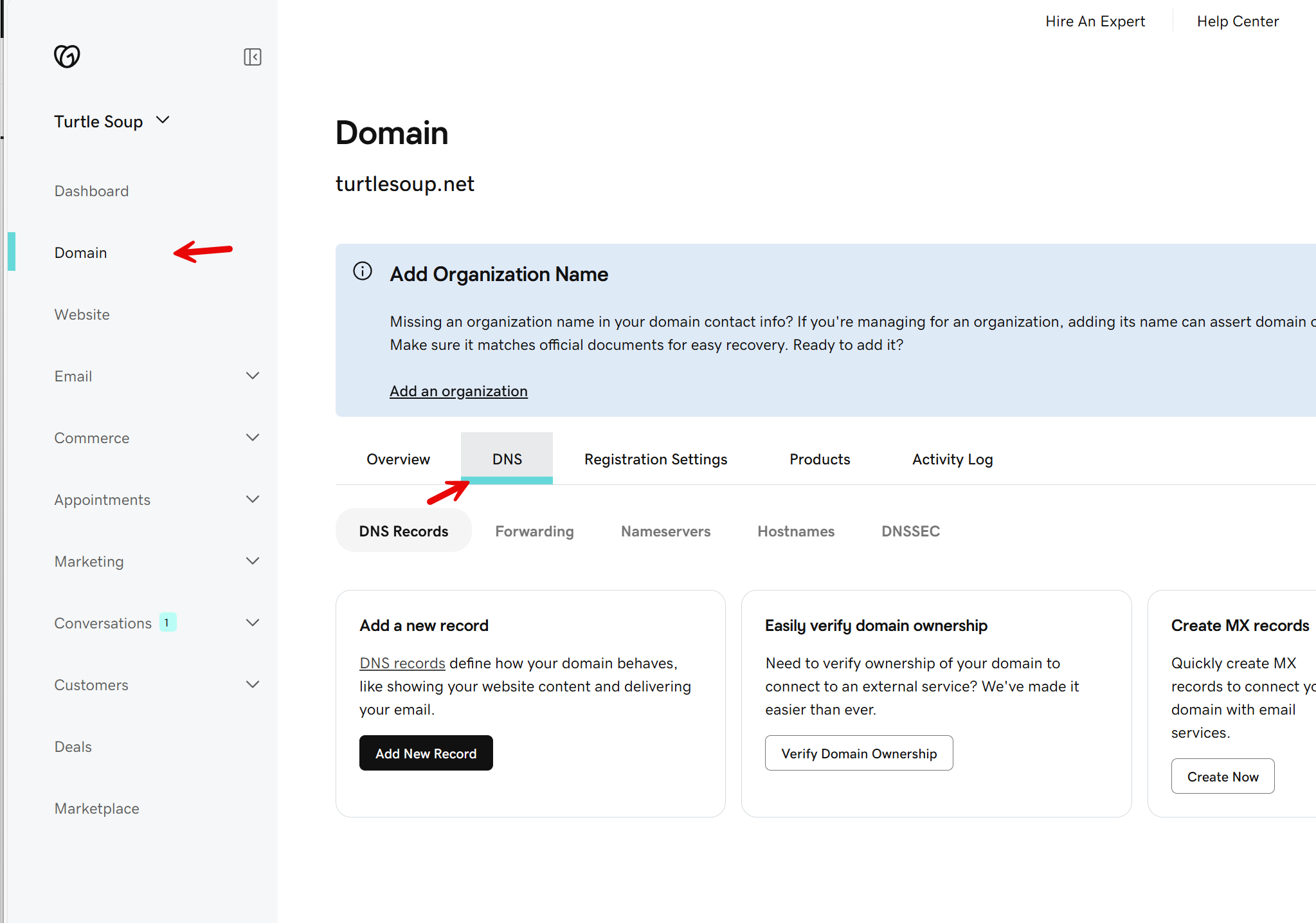
Updating your DNS Records

The Domain section of GoDaddy will host all of your DNS records. EX: 

blog_godaddy_defed_9

Here you will find the MX Records for Proofpoint:

blog_godaddy_defed_10

From here you have two options:

  1. Manually update the records in GoDaddy. 
  2. Use the “Add DNS Records for me” functionality in the Microsoft Admin Portal. 

In either case, you will head over to the admin portal for the tenant: https://admin.cloud.microsoft/#/Domains

From here you can find the MX Record to update in Godaddy. EX:

blog_godaddy_defed_11

You can update the existing MX record in Godaddy and delete the other two. 


Remove GoDaddy as Delegated Admin and Cancel Subscription


Warning!

If you do not follow the steps to remove GoDaddy as a delegated admin before you cancel with them, they will run a script to delete all users in the account and remove the primary domain. You need to ensure you remove them as delegated admin after the move and ensure that their admin user is deleted in the account BEFORE cancelling the subscription. This action is recoverable, but it causes you to have to perform more work and it does involve downtime. If you would like to never have any concerns of this issue with additional safeguards, you should look at a solution that migrates to a new tenant in addition to defederation.


In the 365 Admin Portal:

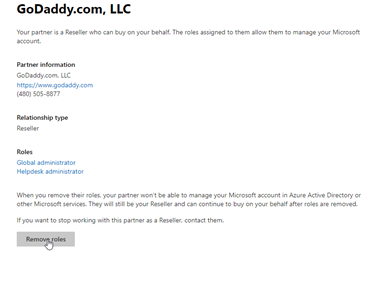
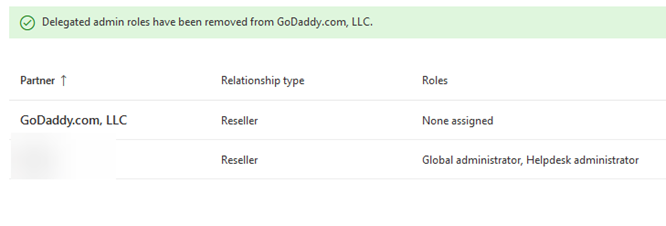
Under Settings>Partner Relationships>Click on GoDaddy>Roles> Remove their roles:

blog_godaddy_defed_12

blog_godaddy_defed_13


Remove Enterprise App (NEW as of Nov 2025)

Its recently come to my attention that GoDaddy also has an Enterprise app that they could leverage to perform write activity even after GDAP is removed. This is done from an Enterprise App that is created called “Partner Center Web App”. You need to delete this from the Enterprise app section in Entra.

Go to https://entra.microsoft.com/ as an admin 

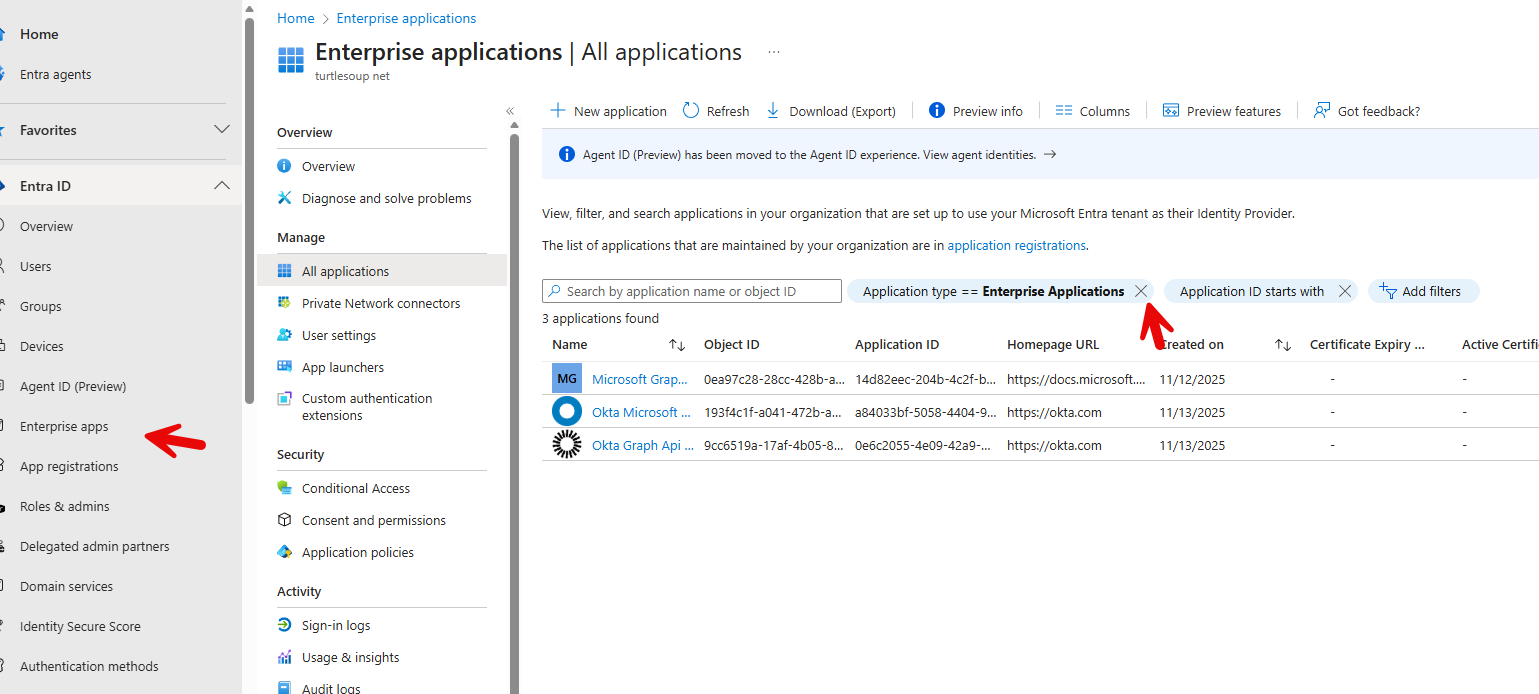
Go to Enterprise apps and click on the X on the existing filter for Enterprise Applications.

blog_godaddy_defed_14
Search for Partner Center Web App.

blog_godaddy_defed_15

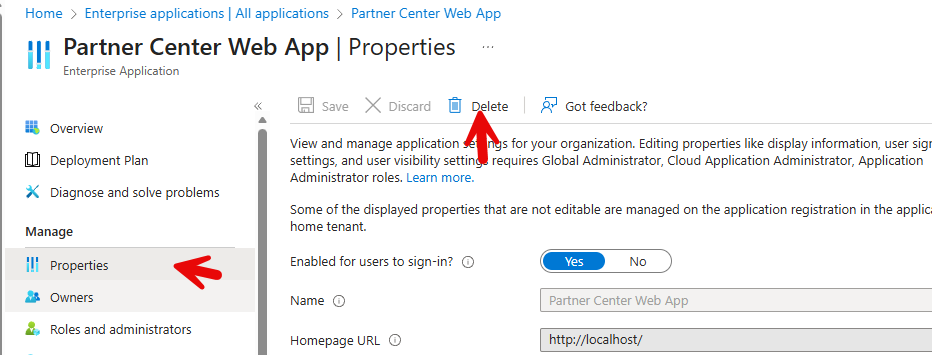
Click on Properties and Delete

blog_godaddy_defed_16

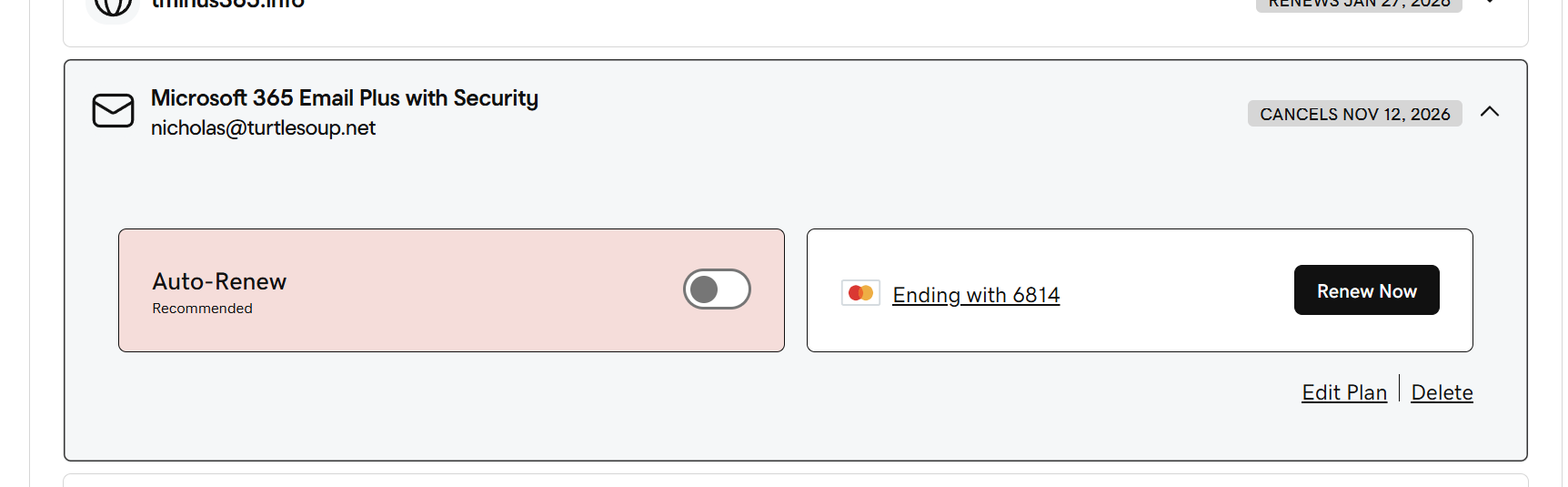
Cancel in GoDaddy

In GoDaddy, cancel the renewal: My Account | Billing 

blog_godaddy_defed_17

Conclusion

From here, the subscription from GoDaddy will expire at end of term and that is all. You now have a tenant under CSP with all of the typical management functionality you are familiar with. Hope this provided some targeted guidance on defederating a GoDaddy tenant! Please share with the community!


Bonus FAQs:

Can I rename my SharePoint URL after migration?

Do I lose Email or Temas data?

  • No there is no data loss with the migration.

What about archiving and backup?

  • Any email add-ons such as archiving and backup are lost during the transition wit the exception being Barracuda archiving.
  • Godaddy does support moving your archives direct to Barracuda.

I’ve seen that this might cause problems with other IDPs such as Okta, is that true?

  • This is a common point of confusion. Many users have cited problems re-federating the account with another provider such as Okta.
  • I tested this out in the account I just showed you and it worked just fine. I was able to refederate to Okta and sign in using them as the IDP.
Defederating GoDaddy 365

17 min read

Defederating GoDaddy 365

If you bought Microsoft 365 through GoDaddy, you probably love how easy it was to get started, domain, email, and Office apps up and running...

Read More
What’s New in Microsoft 365 | November Updates | Ignite Highlights

18 min read

What’s New in Microsoft 365 | November Updates | Ignite Highlights

Microsoft announced quite a few new features and licenses options during their annual Microsoft Ignite 2025 conference in San Francisco....

Read More
Microsoft 365 Copilot for Business: What You Need to Know

5 min read

Microsoft 365 Copilot for Business: What You Need to Know

Microsoft just dropped a brand-new Copilot SKU specifically for small and medium businesses. Lower cost, same Copilot capabilities. Let me...

Read More