

12 min read
Protecting HR Data in Microsoft 365
Do You Really Know Where Your HR Data Lives in Microsoft 365? Most HR teams think they know where their sensitive data lives. “We have a...
Most HR teams think they know where their sensitive data lives.
“We have a locked-down HR SharePoint site.”
“Only HR can access it.”
“There’s no external sharing.”
On paper, that sounds great. But here’s the real question:
“ Do you actually know where your HR data lives in your organization. Not where it’s supposed to live, but where it actually ends up?
Once you start tracing that, the story looks very different.

Here’s a pretty normal HR workflow:
HR builds a secure site in SharePoint for HR docs.
Permissions are locked down.
External sharing is disabled.
Everyone feels good, HR data is secure.
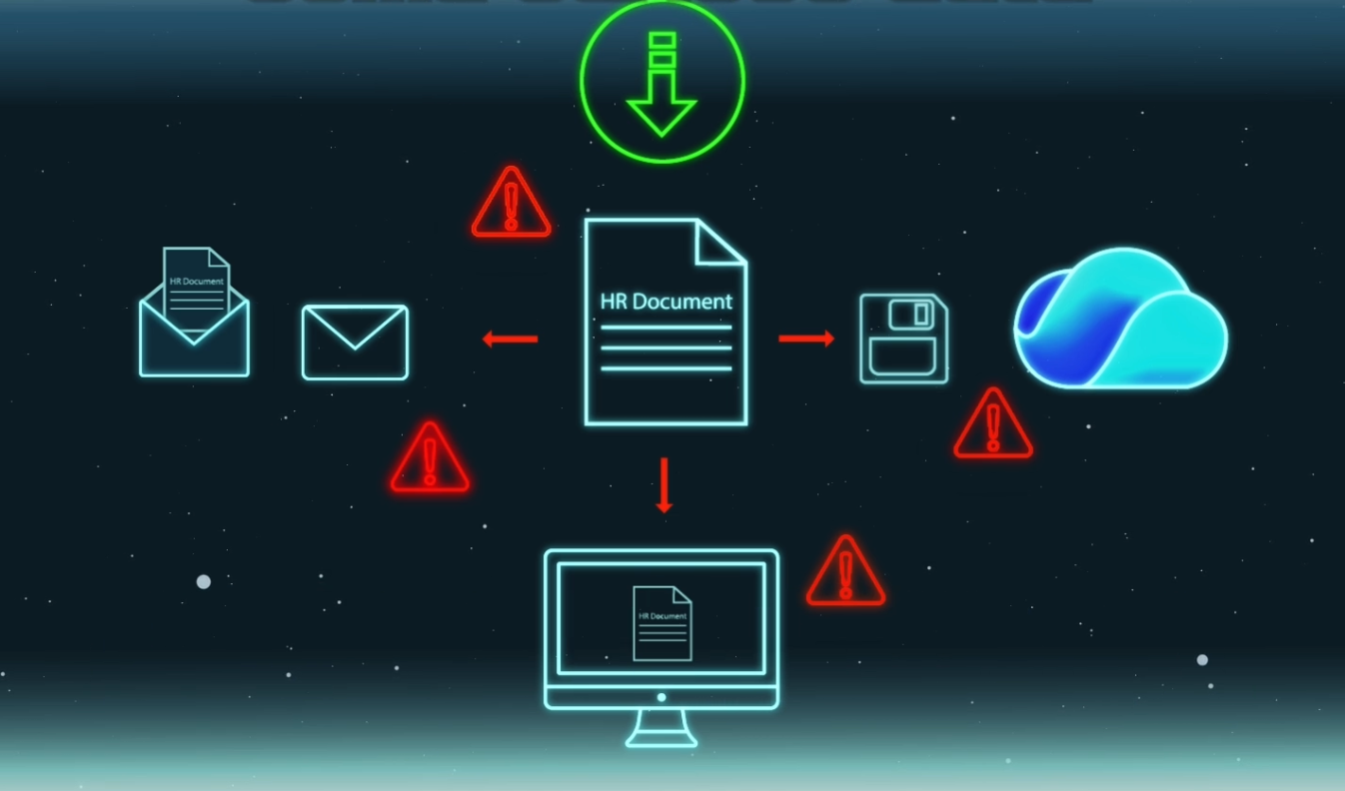
Then… work happens:
An HR coordinator downloads an Excel file to finish it later.
A manager saves a copy to their personal OneDrive.
Someone exports a CSV of employee records and keeps it on their laptop.
Payroll needs a copy, so the file gets emailed to an external address.
Same file.
Same data.
Completely different locations.
And sometimes, it’s not even the same file anymore. People tweak it, add tabs, copy/paste rows into new documents. The data fragments and multiplies.
This is where organizations run into real data loss risk:
“Once the document leaves the HR site, site permissions no longer protect the data.
You can have the cleanest SharePoint permissions model in the world and still have HR data leaking from OneDrive, local devices, or mailboxes.
So… what do you do about it?
The key mindset shift is this:
“Microsoft 365 doesn’t protect locations. It protects data it can recognize.
Locking down SharePoint is necessary, but it only protects data as long as it stays in that site.
The moment HR data moves to:
A user’s OneDrive
Another SharePoint site
A Teams file
An email attachment
…it’s no longer being protected by that original site’s security boundary.
If Microsoft Purview can’t recognize the HR data itself, then:
Data Loss Prevention (DLP) can’t trigger.
Alerts won’t fire.
Policies won’t block the movement.
This is why so many DLP projects stall out. People turn on a few policies, check some boxes, and then wonder why HR data still slips through.

To protect HR data in transit, no matter where it lives, you need two things working together:
Classifiers
Data Loss Prevention (DLP) policies
Think of it like this:
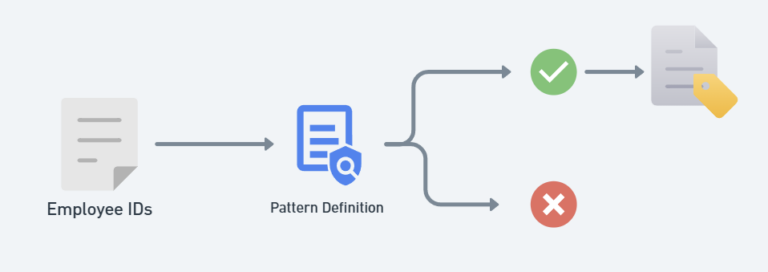
Classifiers tell Microsoft what to look for.
DLP policies tell Microsoft what to do when it finds it.
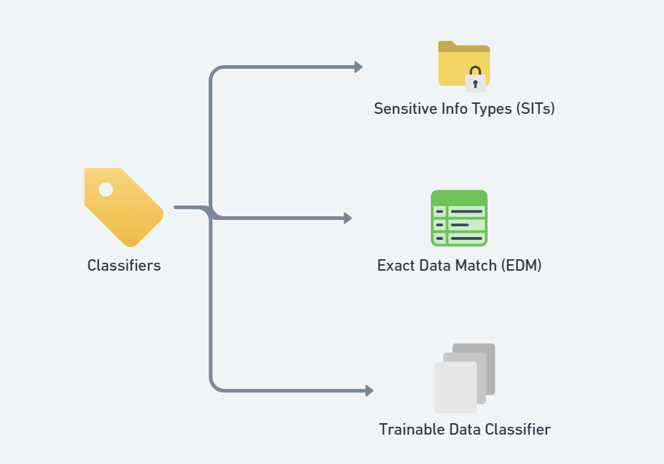
In Purview, there are three main classifier approaches you’ll hear about:
In this HR-focused scenario, we start with Sensitive Information Types because they’re:
Flexible
Pattern-driven
A great foundation for DLP policies

Microsoft ships a big list of built-in Sensitive Info Types out of the box. Things like:
Credit card numbers
Bank account numbers
Government IDs
Those are useful, but here’s the catch:
They often create a ton of false positives.
They usually don’t cover your internal HR constructs (like employee IDs, staff IDs, internal reference numbers, etc.).
When you scroll through the default SIT list, you’ll notice there’s very little that’s truly HR-specific.
So if you want to protect HR data, you almost always need to:
“ Create custom Sensitive Info Types that match your actual HR data patterns.
For example, let’s say you use an internal employee ID format:
Starts with EMP-
Followed by 4–6 digits
Maybe appears near keywords like “Employee ID” or “Staff ID”
That pattern shows up in:
Employee master spreadsheets
Team rosters
HR system exports
Onboarding documents
If you teach Microsoft how to recognize that pattern, you suddenly gain visibility into where HR data lives across:
SharePoint sites
OneDrive
Teams
Exchange Online
Bonus: Use this discovery worksheet I made to help you audit what types of data you might want to prioritize protecting

A quick but important licensing callout:
Microsoft 365 Business Premium
Includes DLP and built-in sensitive info types.
Does not include custom sensitive info types.
Enterprise plans (E5) or Purview add-ons
Unlock custom sensitive info types.
This is what you need if you want to build HR-specific classifiers like custom employee IDs.
If you’re serious about protecting HR data, especially in regulated or higher-risk environments, the Purview add-on for Business Premium or enterprise licensing is usually worth it.

High-level steps:
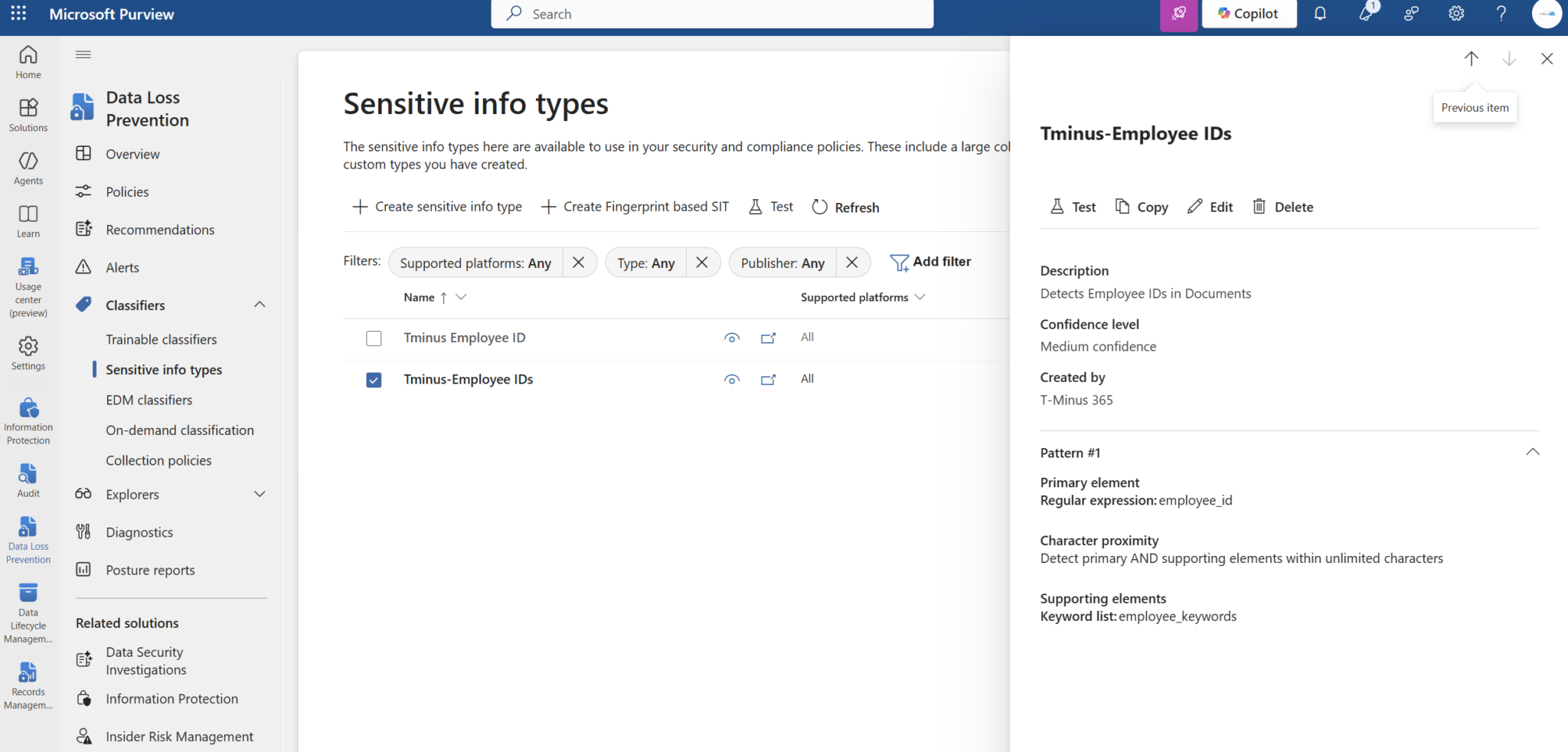
Go to Data classification → Sensitive info types.
Click Create to build a new SIT.
Give it a meaningful name and description, e.g.:
Define a pattern:
Use a regular expression (regex) to describe your employee ID format
Example structure: EMP-1234 or EMP-1234-5678
Add supporting elements like nearby keywords:
“Employee ID”
“Staff ID”
“Internal ID”
5. Set confidence levels:
Start with Medium confidence while testing.
Refine it later if you’re seeing too many false positives or missed matches.
You can also adjust:
Where in the document it looks (e.g., entire doc vs. first 300 characters)
How close the supporting keywords must be to the pattern
The goal: Be specific enough to avoid noise, but flexible enough to catch real-world variations.

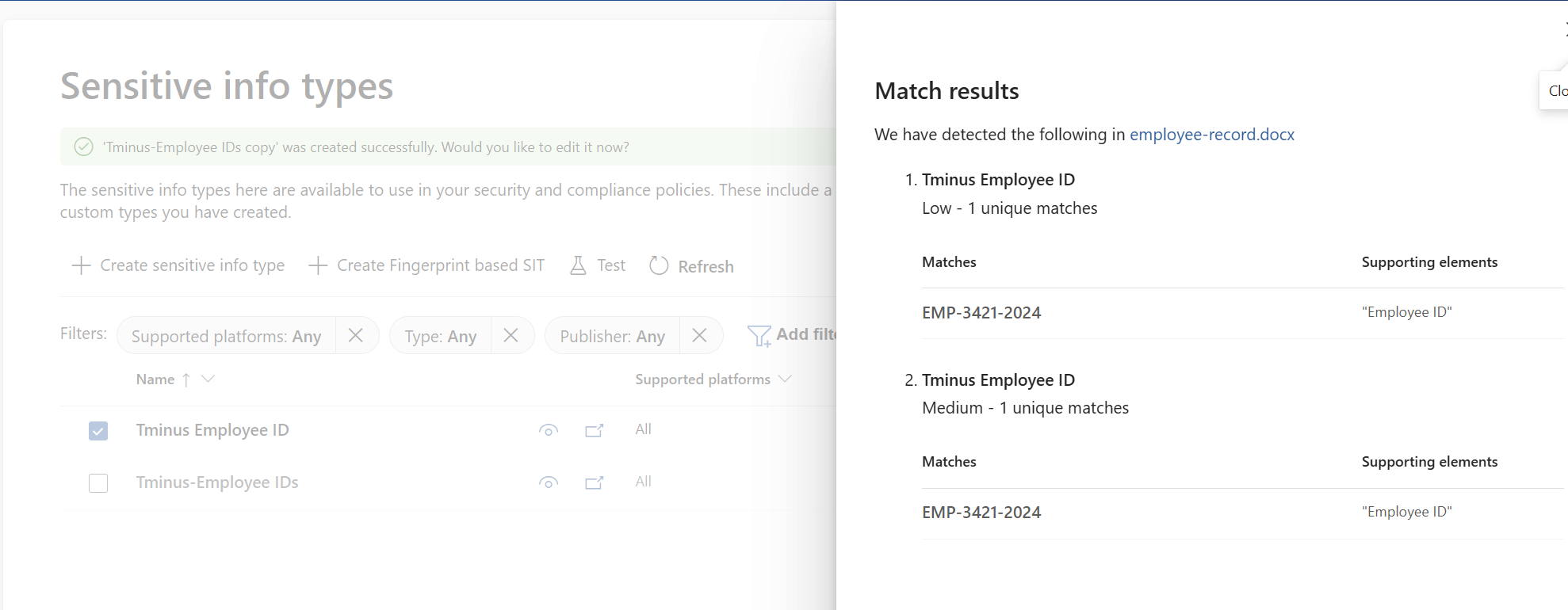
Before you ever put a blocking policy in place, you should test the classifier against actual HR documents.
In the SIT testing experience, upload a mix of files:
✅ Files that should match:
Employee roster spreadsheets
Employee record documents
❌ Files that shouldn’t match:
Generic docs with random numbers
HR docs without IDs
You want to see:
Confident matches on the right files
No matches on the wrong ones
In the example from the transcript:
The employee record and team roster both matched as Medium confidence.
A random test file with no employee IDs returned “no sensitive information found.”
That’s exactly what you want to validate before moving on.

Once your custom SIT is working, it’s time to enforce behavior using a DLP policy.
In Purview:
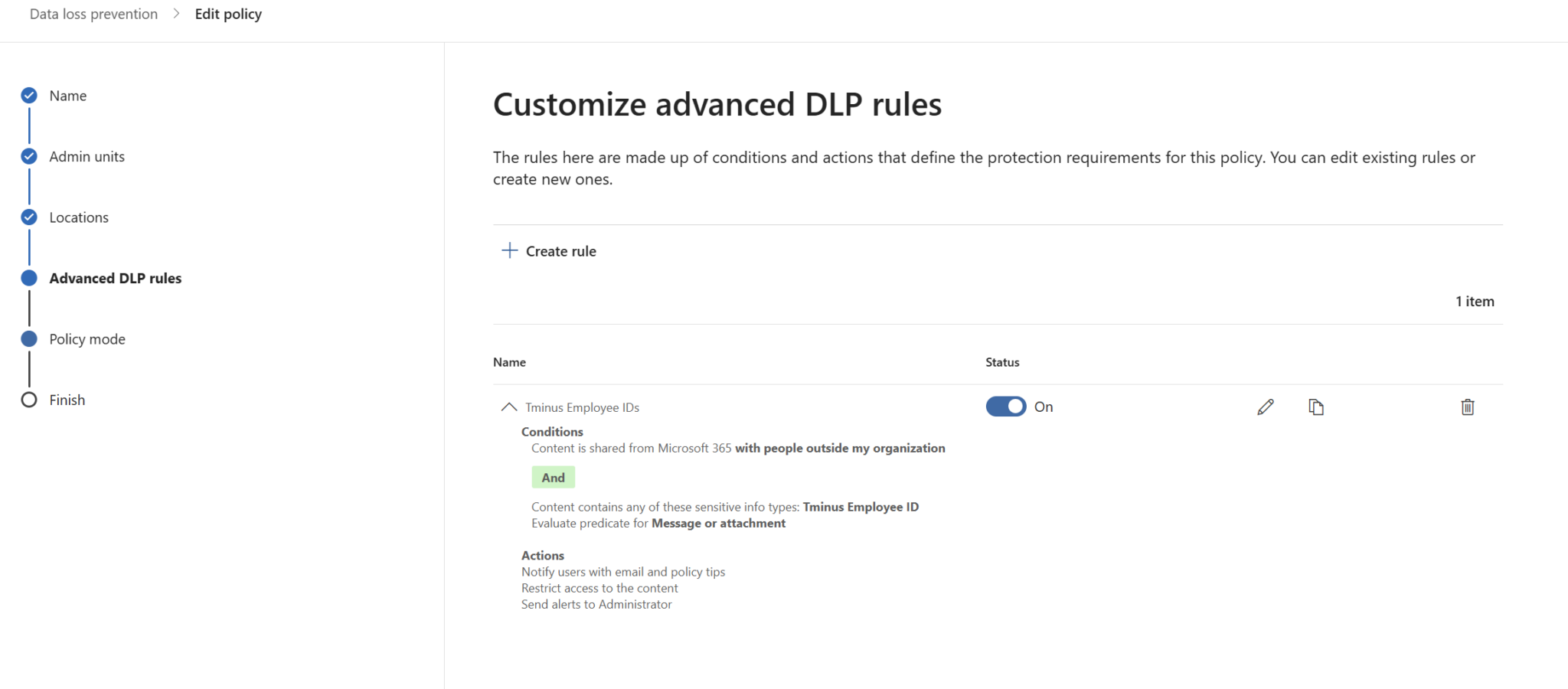
1. Go to Data Loss Prevention → Policies → Create policy.
2. Choose a Custom policy (not just a template).
3. Give it a name, e.g.:
HR – Protect Employee IDs
4. Select the locations you want to protect:
Exchange email
SharePoint sites
OneDrive accounts
Teams chats and channel messages
5. Add a new rule with conditions like:
When this content is shared from Microsoft 365…
AND
…with people outside my organization
AND
The content contains → your custom Sensitive Info Type (e.g., TMinus_EmployeeID)
Instances: 1 to Any
6. Choose the action:
Restrict or encrypt content in those locations
Block access for everyone (or everyone external)
Trigger alerts / incident reports
Show policy tips to the user
7. Turn the policy on in simulation mode first:
Always recommended.
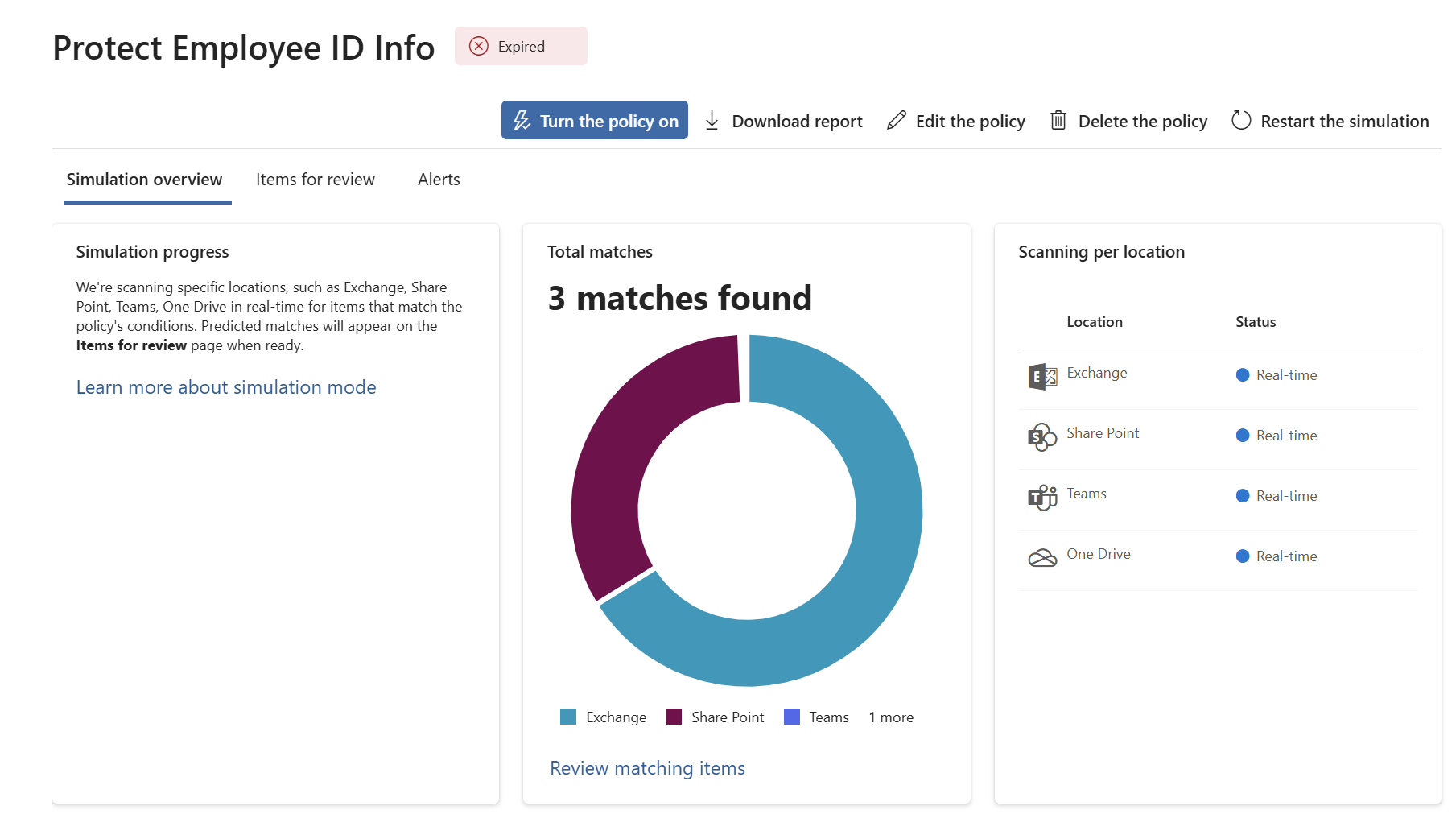
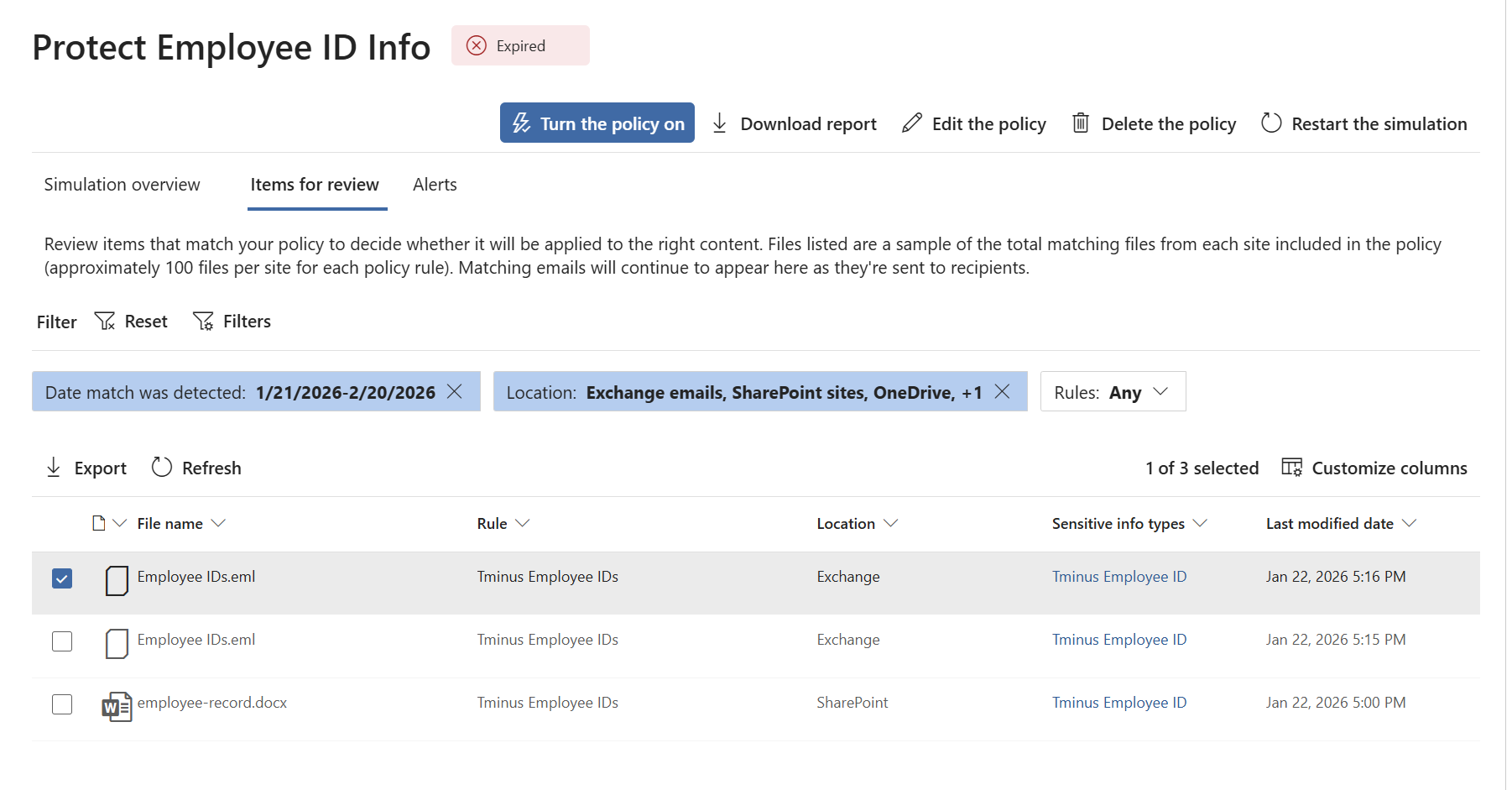
Let it run, gather matches, and see where your sensitive HR data actually lives and moves.
Use simulation results to tune scope and rules.

When you turn on a new DLP policy, two bad things can happen if you skip simulation:
You block way more than you meant to (angry users, support tickets).
You realize your classifier wasn’t ready, and you’re now enforcing based on bad or noisy matches.
Simulation mode lets you:
See how many matches you’d get across SharePoint and OneDrive.
See which locations are actually holding the sensitive data.
Validate whether this aligns with your expectations.

Bonus: You can exclude approved locations (like your official HR SharePoint site) from enforcement while still monitoring everywhere else.
That means you’re really using DLP to:
“ Find HR data where it shouldn’t be like personal OneDrives, random sites, or outbound email.

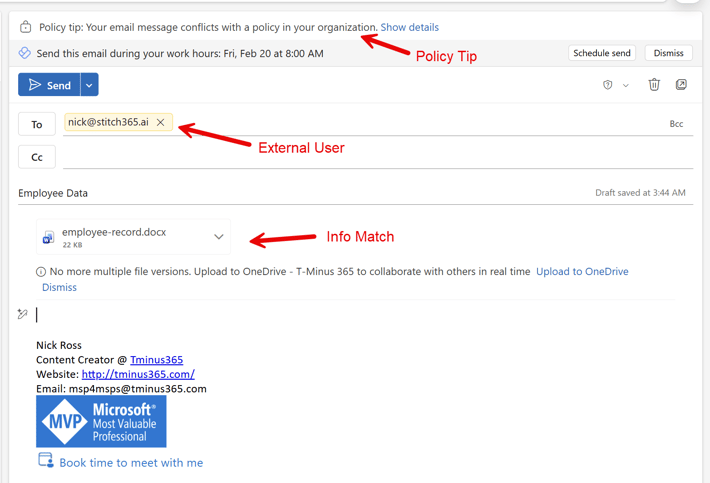
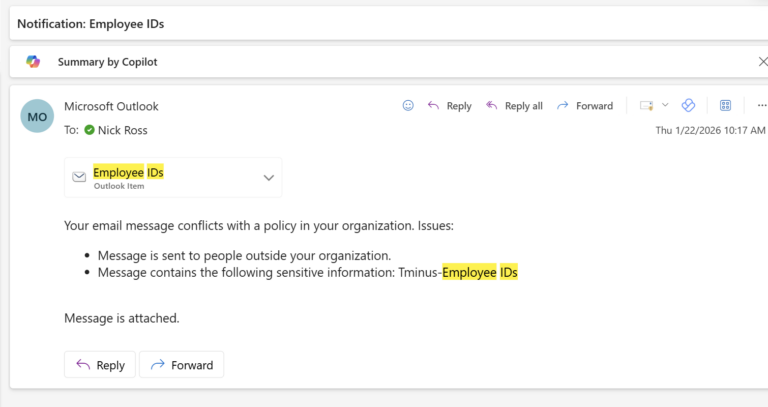
Once your policy is live, here’s what users might see in Outlook when they try to send a file with employee IDs externally:
A policy tip at the top of the message:
“Your email conflicts with your organization’s policy.”
Depending on your configuration, you can:
Block the send entirely
Allow an override with justification (generally not recommended for very sensitive data)
Just warn and log the event while you’re still rolling out the policy

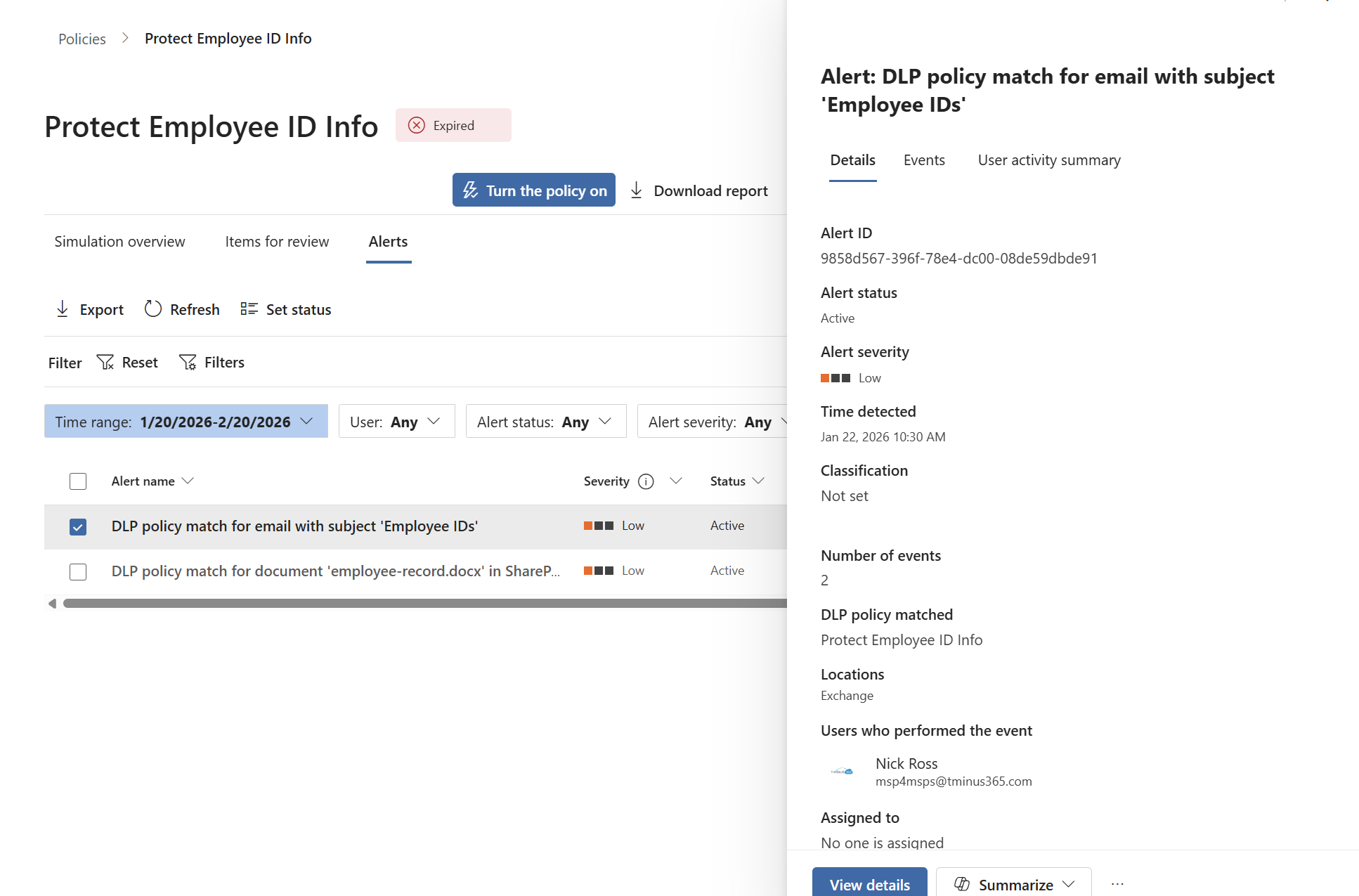
On the admin side, you’ll see:
Alerts in Purview when users try to send or share protected HR content
Details about:
Who sent it
What they tried to send
Where it was headed
What rule triggered
This gives you both governance and forensic visibility.

Let’s replay that original story:
HR exports a spreadsheet with employee data.
It gets saved to SharePoint.
A copy is downloaded.
Someone emails it to payroll externally.
Without DLP + custom SITs:
You’re relying purely on people doing the right thing.
SharePoint permissions only helped while the file stayed in the site.
You have almost no visibility once it spreads.
With DLP + custom SITs:
Microsoft recognizes the employee IDs inside the file.
When someone tries to email it externally, DLP kicks in.
You can:
Block the email
Warn the user
Log and alert for review
Same people.
Same workflow.
Very different outcome.
12 min read
Do You Really Know Where Your HR Data Lives in Microsoft 365? Most HR teams think they know where their sensitive data lives. “We have a...
5 min read
Microsoft has officially announced pricing updates coming to Microsoft 365 in 2026. This isn’t speculation. These are confirmed changes that...
6 min read
You’re probably excited about rolling out Microsoft 365 Copilot.But here’s the uncomfortable truth most organizations discover too late: ...