

5 min read

Secure Guest User Access in Microsoft 365

Secure Guest User Access in Microsoft 365


If you’re an MSP, you’ve probably seen it: the business wants frictionless collaboration with vendors, contractors, and partner companies. They’re sharing files in SharePoint, chatting in Teams, moving fast… and the security model quietly drifts into “wide open.”

This post walks through a real-world-style scenario (Tech Corp) and the exact Microsoft 365 controls that can turn guest access from a liability into a strength.

The story: a trusted vendor becomes the front door

Meet Tech Corp—a mid-sized software company with about 300 employees. They’ve standardized on Microsoft 365 for everything and rely heavily on SharePoint and Teams for collaboration. They also work with dozens of contractors, freelancers, and partner organizations.

You’re their MSP.

One day, you get the call every MSP dreads:

One of our vendors had a breach… and the attackers might have used that access to get into our tenant."


You pull up the logs and there it is:

  • A guest account from the vendor’s domain

  • Inactive for months

  • Suddenly logging in, downloading files, and viewing customer data

And the access wasn’t limited. That compromised guest had visibility into multiple Teams channels and SharePoint sites containing:

  • product roadmaps

  • customer information

  • even financial files

Because Tech Corp hadn’t configured guest restrictions properly, the external user could also see the employee directory—meaning the attacker could map the org, identify key teams, and target the most valuable data.

Worse: no MFA requirement for guests. Once the partner account was compromised, attackers walked right in.

Even worse: no alerts. Tech Corp didn’t learn about the breach until the vendor disclosed it three weeks later.

The damage?

  • stolen intellectual property

  • a major customer questioning Tech Corp’s security

  • a painful, expensive incident response process

This wasn’t ransomware. It wasn’t a phishing campaign against Tech Corp.
It was a trusted account walking through the front door.

So let’s rewind the clock and walk through what would have prevented it.

Rewind: where Tech Corp started (and why it’s common)

A few months before the incident, Tech Corp was thriving. Like many organizations, they left external sharing near the defaults because Microsoft optimizes for productivity out of the box.

That effectively meant: “We can share documents with anyone.”

It worked until an executive discovered that a sensitive financial document had been exposed because someone forwarded an email containing an Anyone link. The recipient didn’t need to sign in. They just opened it.

That moment is usually when leadership gets serious and asks:

How do we lock this down without breaking collaboration?”


Layer 1: Fix SharePoint sharing (kill “Anyone” links + tighten defaults)


blog_secure_guest_access_1

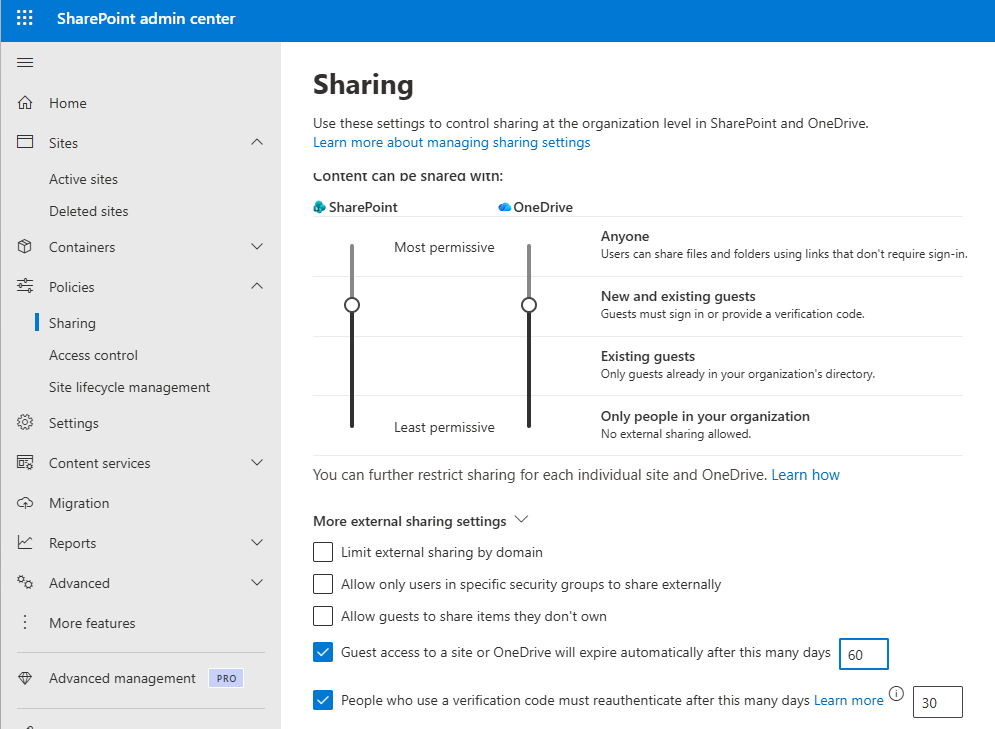
Your first stop is the SharePoint Admin Center.

Why this matters: “Anyone” links are public links. They can be forwarded, copied, pasted, and opened by unintended recipients—often with no authentication and limited accountability.

Recommended baseline settings

In SharePoint Admin Center → Policies → Sharing:

  1. Set external sharing to “New and existing guests”

    • This forces external users to authenticate (or verify via a secure process).

    • It dramatically reduces anonymous exposure.

  2. Set the default link type to “Specific people”

    • This promotes least privilege.

    • It forces the sharer to name who should access the content.

  3. Set the default permission to “View”

    • Many orgs accidentally overshare with edit rights.

  4. Enable link expiration

    • Expiring access is one of the simplest ways to reduce “forever access” drift.

This single shift—blocking Anyone links and requiring guest-based sharing—can eliminate a huge chunk of accidental data exposure.

Key insight: If you do nothing else, moving from “Anyone” links to “New and existing guests” plus expiration often eliminates the most common data leaks.


Layer 2: Understand how guests get created (and why it matters)

When you share externally using “New and existing guests,” the recipient may go through one of two common experiences:

  • One-time passcode verification (they get a code in their email)

  • Full sign-in + consent experience (they sign in and may be created as a guest user)

Which experience happens can depend on tenant configuration (including SharePoint/OneDrive B2B integration behavior). The practical implication for MSPs:

  • Some tenants will quietly accumulate guest users

  • Others will allow access with verification workflows that still require governance

Either way, you should assume external collaboration creates long-lived access paths unless you deliberately manage lifecycle.

Secure external sharing in SharePoint – SharePoint in Microsoft 365 | Microsoft Learn

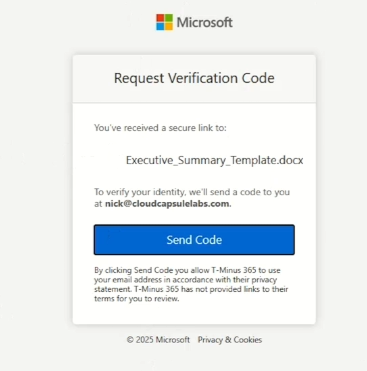
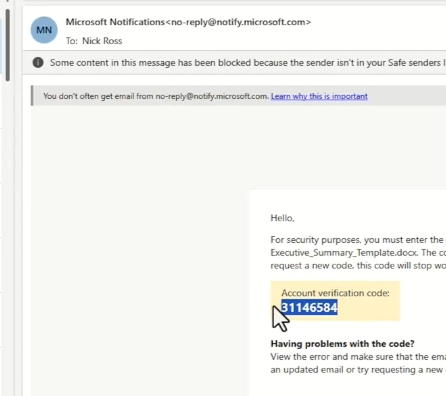
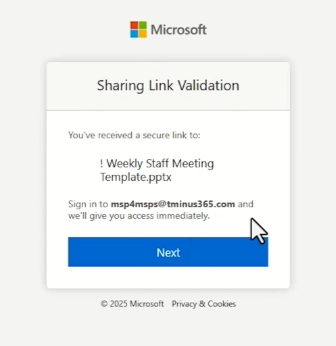
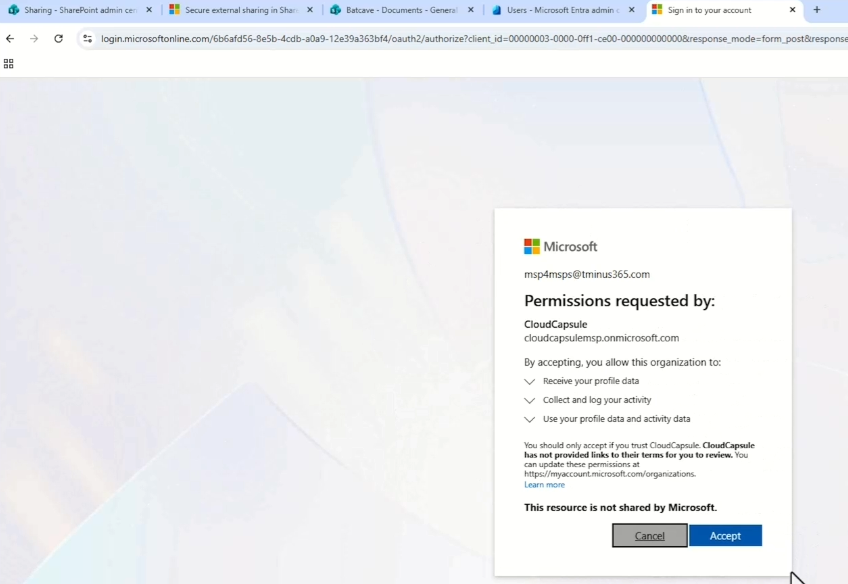
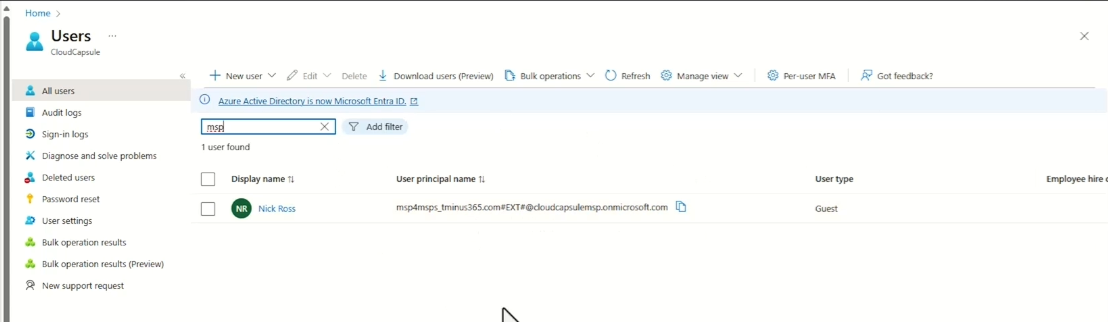
Below you will see the user experience based on the code flow vs sign in flow. If the tenant has B2B activated, they will use the sign in flow: 

PowerShell to change settings: Microsoft Entra B2B integration for SharePoint & OneDrive – SharePoint in Microsoft 365 | Microsoft Learn

Code Flow (no guest user created in Entra)

blog_secure_guest_access_2

blog_secure_guest_access_3

Sign in flow (B2B integration enabled. Guest User created in Entra)

blog_secure_guest_access_4

blog_secure_guest_access_5

blog_secure_guest_access_6


Layer 3: Lock down what guests can do in Entra (directory visibility + invitations)

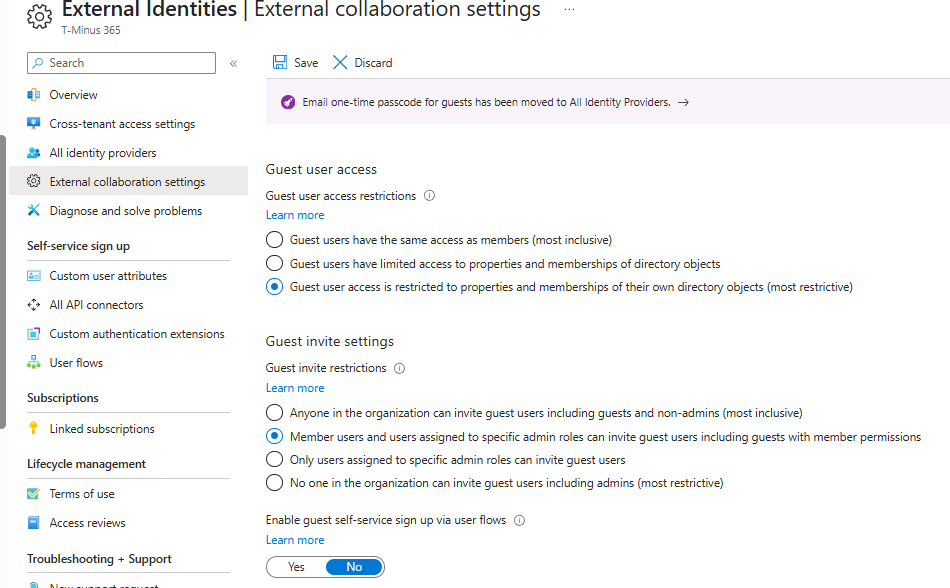
Next stop: Microsoft Entra admin center → External Identities → External collaboration settings

This is where Tech Corp made two critical mistakes:

  • Guests had too much directory visibility

  • Guest invitations were too open (or the org considered “locking it down” so hard it broke workflows)

A. Restrict guest directory visibility

Set guest access to limit what they can see inside your directory.

This prevents compromised guests from easily enumerating:

  • employee names

  • group memberships

  • organizational structure

That matters in a breach—directory visibility is a lateral movement gift.

B. Control who can invite guests (without breaking the business)

The default often allows broad guest invitations—including the potential for guests to invite other guests.

If you lock this down too aggressively (like “admins only”), you can create a helpdesk nightmare:

  • “I can’t share with the client”

  • “Our vendor can’t open the file”

  • “Teams invite is blocked”

A practical middle ground:

  • Allow member users and specific admin roles or

  • Use Guest Inviter role / controlled invitation model (depending on how mature the org is)

This is where MSPs need to balance security with real workflows.

blog_secure_guest_access_7


Layer 4: Enforce MFA for guests (stop the “vendor password compromise” chain)

This is the point where Tech Corp’s incident becomes avoidable.

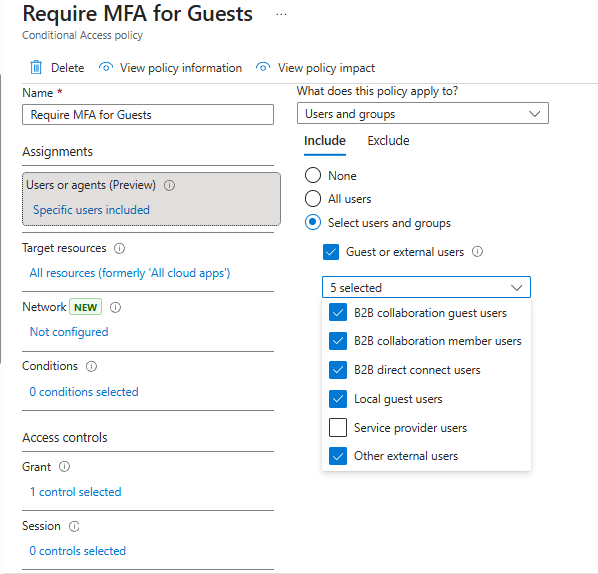
If you enforce MFA for guests, the attacker can’t simply reuse a compromised partner password to walk into your tenant.

Even if the vendor’s security is weak, your tenant doesn’t have to inherit that weakness.

The clean approach: create a dedicated Conditional Access policy for guests.

blog_secure_guest_access_8

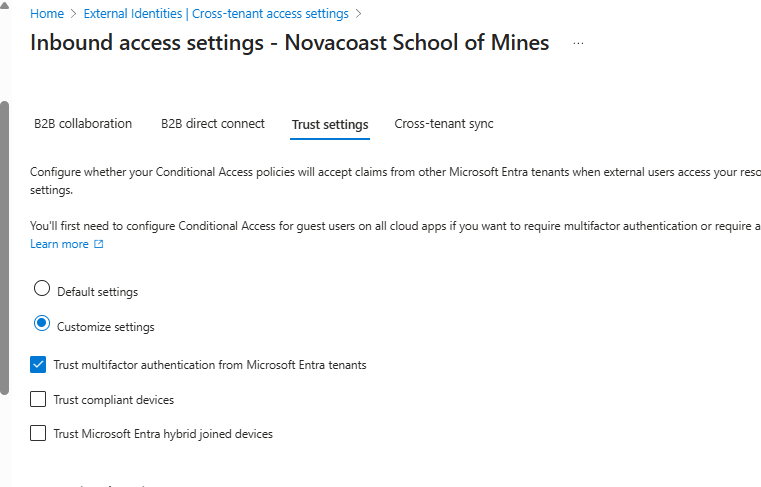
Bonus: Use Cross Tenant Access Settings to trust outside MFA

One point of friction that enforcing MFA causes is that outside users get confused that they have to set up another MFA method. For organizations you work with on a frequent basis, I would suggest setting them up in the cross-tenant access settings. https://learn.microsoft.com/en-us/entra/external-id/cross-tenant-access-overview 

From here, you can leverage trust settings to trust their MFA and not make users set up another method. I would use this with caution depending on what files/data they are accessing and what forms of MFA the outside org is leveraging (i.e. if they just use SMS and your standard is phishing resistant, you might not want to leverage their MFA). 

blog_secure_guest_access_9

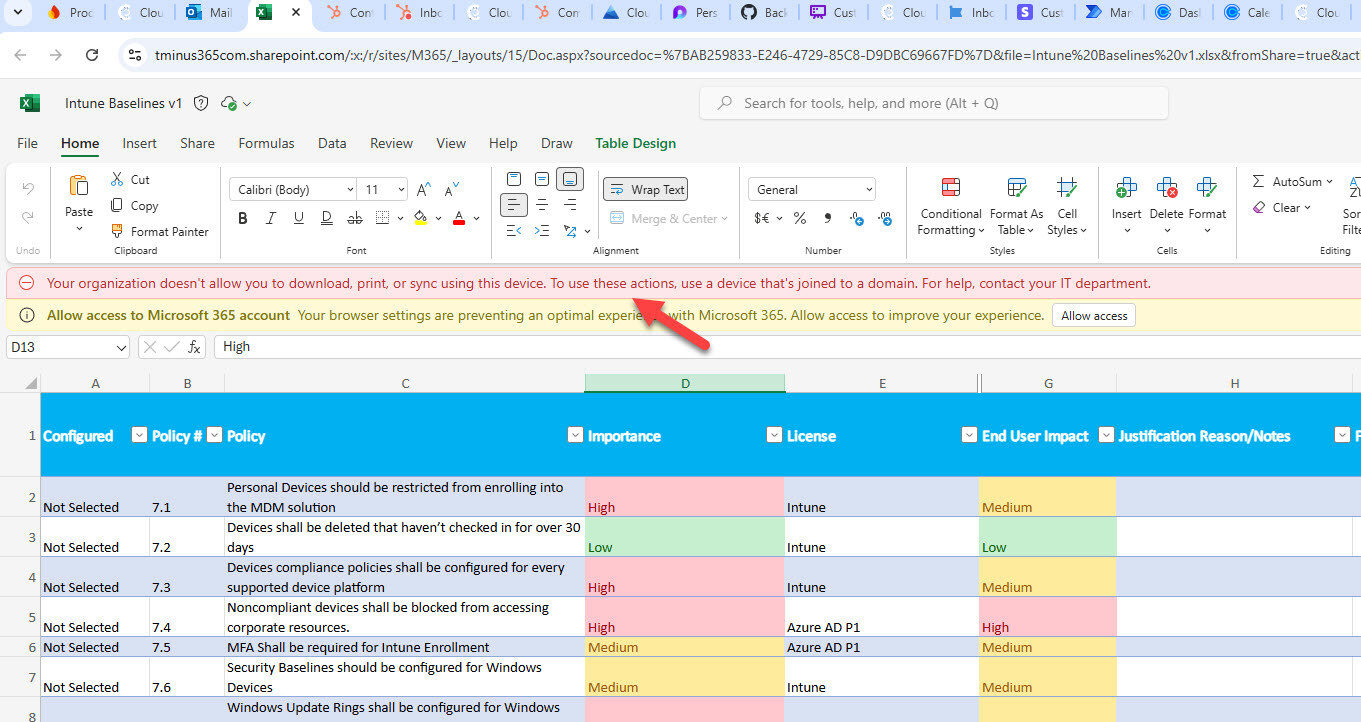
Layer 5: Conditional Access to prevent local download (web-only for unmanaged devices)

In this breach story, the guest user downloaded data—potentially to an unmanaged device.

You can reduce the “data sprawl” and exfiltration risk by controlling access from unmanaged endpoints.

A strong, MSP-friendly model:

  • Guests can access SharePoint/OneDrive via browser

  • But cannot download files locally unless the device is compliant / managed

Two common approaches:

  1. Require compliant device / hybrid joined for rich-client access

  2. Enforce web-only access (limited browser experience) on unmanaged devices

This dramatically reduces the risk of a compromised guest account turning into a full “download the world” incident.


Important: Be cautious with these settings—incorrect scoping can break legitimate internal workflows. Test and phase rollout.


blog_guest_users_5

Layer 6: Sensitivity labels for your most sensitive data (protect the crown jewels)

Even with all the above controls, you still want a way to protect the most sensitive content like IP, financials, and customer data so it cannot be shared externally or opened by guests.

That’s where Microsoft Purview sensitivity labels come in.

A simple taxonomy often works best:

  • Public

  • Internal

  • Confidential

  • Highly Confidential

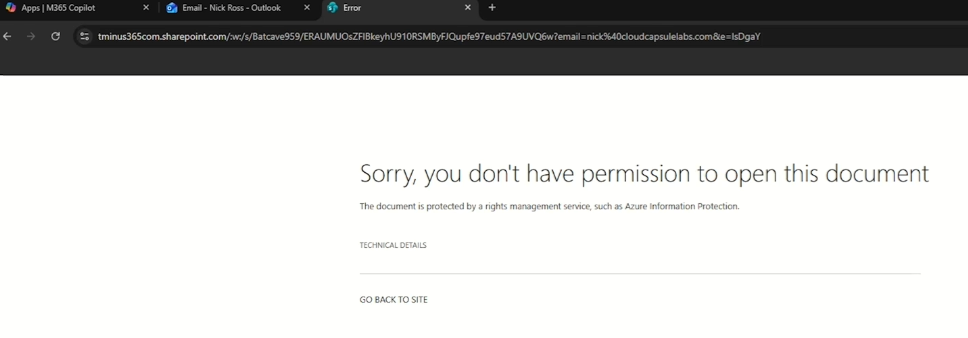
For sensitive labels, you can configure protections so that:

  • Only internal users can open the file

  • External guests are blocked

  • Rights management enforces controls even after sharing attempts

This is the “belt and suspenders” approach:

  • Conditional Access reduces download risks

  • Sensitivity labels reduce access risks for sensitive items

blog_secure_guest_access_11


Layer 7: Access Reviews (remove dormant guests before they become the entry point)

Tech Corp’s breach hinged on a guest account that had been inactive for months.

That’s painfully common.

If you have Entra ID P2 (or equivalent governance licensing), Access Reviews let you systematically review and remove guest access on a cadence, quarterly is a great starting point.

Access Reviews can:

  • route reviews to the right owners

  • prompt justification

  • automatically apply results (remove access)

One key nuance:

  • Access Reviews often remove access to groups/teams/resources

  • They may not delete or disable the guest object itself in all cases
    But removing access is the most important piece for stopping data exposure.


Replay the incident (but with the right controls)

If Tech Corp had implemented this layered model:

  • The compromised vendor guest would hit MFA and likely be stopped

  • If they got in, unmanaged device restrictions would reduce local download/exfiltration

  • Guests would have limited directory visibility, reducing lateral targeting

  • Sensitive documents would be blocked by labels

  • Dormant guests would be removed through Access Reviews

  • “Anyone” links would be blocked and links would expire

Same vendor breach.
Very different outcome.

Secure Guest User Access in Microsoft 365

16 min read

Secure Guest User Access in Microsoft 365

If you’re an MSP, you’ve probably seen it: the business wants frictionless collaboration with vendors, contractors, and partner companies....


Read More
What’s New in Microsoft 365 | December Updates

11 min read

What’s New in Microsoft 365 | December Updates

Microsoft announced a number of updates in December including Teams, Microsoft 365 apps, Intune, Entra, Copilot -- including calendar search...

Read More
Why Your MFA Can Still Be Hacked (How I’d Implement MFA in 2026)

8 min read

Why Your MFA Can Still Be Hacked (How I’d Implement MFA in 2026)

In today’s attack landscape, not all MFA methods should be treated equal. Across Microsoft 365 tenants, one of the fastest-growing attack...

Read More