


7 min read
2 min read
Secure Local Admin Passwords: How Microsoft’s LAPS for Intune Solves It
Nick Ross
:
Updated on October 20, 2025
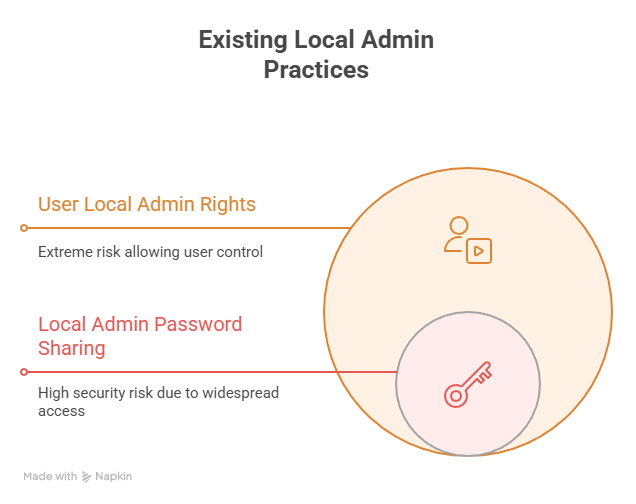
IT admins still fall into two common traps when managing local administrator accounts across user workstations:
-
Using the same password across all endpoints.
-
Allowing end users to be local administrators on their devices.
While this can make things easier operationally it creates a massive attack surface. Those same users can install malware, fall victim to ransomware, or add malicious browser extensions with elevated privileges.
The result? A potential compromise that spreads laterally across every device sharing that password. MSPs often store these passwords in a documentation tool like IT glue to overcome many of these issues but I would argue that letting Microsoft manage these might be a better, and more secure, option.
That’s where Microsoft’s Local Administrator Password Solution (LAPS) comes in.

What Is Microsoft LAPS?
LAPS (Local Administrator Password Solution) is a built-in capability in Windows and Microsoft Intune that automatically manages local admin passwords across your devices.
In short: it’s like a password manager for endpoints, but managed through Intune or Entra ID (formerly Azure AD).
With LAPS you can:
-
Securely manage unique local admin passwords for every device.
-
Automatically rotate passwords on a schedule or immediately after use.
-
Store passwords securely in Entra ID so only authorized users can retrieve them.
Even better, you can convert existing local administrator accounts into standard user accounts, tightening your security posture without breaking productivity.
Prerequisites Before You Deploy
Licensing
You’ll need:
-
Microsoft Entra ID Free (or higher)
-
Microsoft Intune license
(Microsoft 365 Business Premium is ideal, it includes both)
Device Requirements
Devices must be Entra joined or hybrid joined.
Entra registered devices are not supported.
Additionally, ensure your devices are on a supported Windows version. Many new features, such as automatic account management, require Windows 11 24H2 or later.
Pro Tip: Review the CSP documentation before rollout. It lists each policy and its supported OS version so you don’t waste time troubleshooting. LAPS CSP | Microsoft Learn
Step-by-Step: Configuring LAPS in Intune
Step 1: Enable LAPS in Entra ID
-
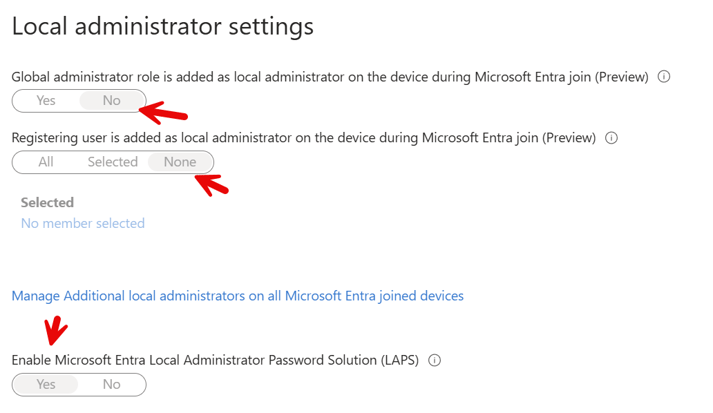
Navigate to Entra Admin Center → Devices → Device Settings
-
Set “Enable Microsoft Entra Local Administrator Password Solution (LAPS)” to Yes
-
Optionally, set:
-
“Add Global Admins as local admins” → No
-
“Add users joining the device as local admins” → None
-
This ensures users are created as standard users, not local admins, during enrollment, especially useful when using Windows Autopilot.

Step 2: Create a LAPS Policy in Intune
-
Go to Intune Admin Center → Endpoint Security → Account Protection
-
Click + Create Policy
-
Platform: Windows 10 and later
-
Profile: Local Administrator Password Solution (LAPS)
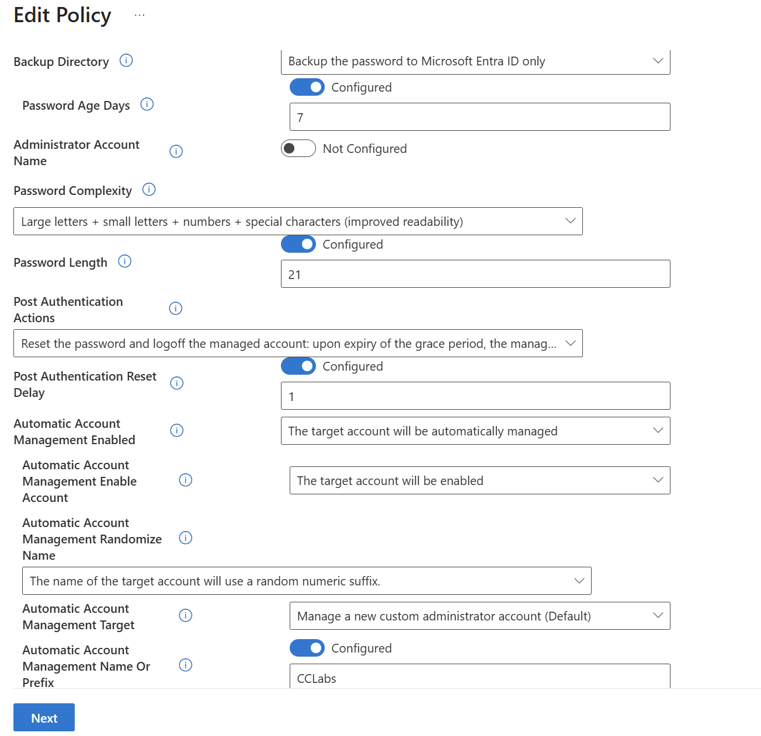
Give your policy a name (e.g., “LAPS – Standard Devices”).
Now configure the settings:
| Setting | Recommendation |
|---|---|
| Backup Directory | Entra ID (securely stores the password) |
| Password Age (days) | 30 or less |
| Password Complexity | Uppercase, lowercase, numbers, and special characters |
| Password Length | 21 characters |
| Post Authentication Action | Reset password and log off managed account |
| Delay Before Reset | 1 hour |
| Automatic Account Management | Enable |
| Account Prefix | e.g. “CC-Labs” or your organization name |
💡 This approach automatically creates and manages a unique local admin account on each device, complete with scheduled rotations.

Step 3: Assign and Deploy
Assign your LAPS policy to a device group—start with a test group (e.g., Windows Autopilot devices). Then click Create to deploy.
Verifying Deployment
After deployment, open Local Users and Groups on a target machine.
You should see a new admin account (e.g., CC-Labs-1234) automatically created and managed by LAPS.
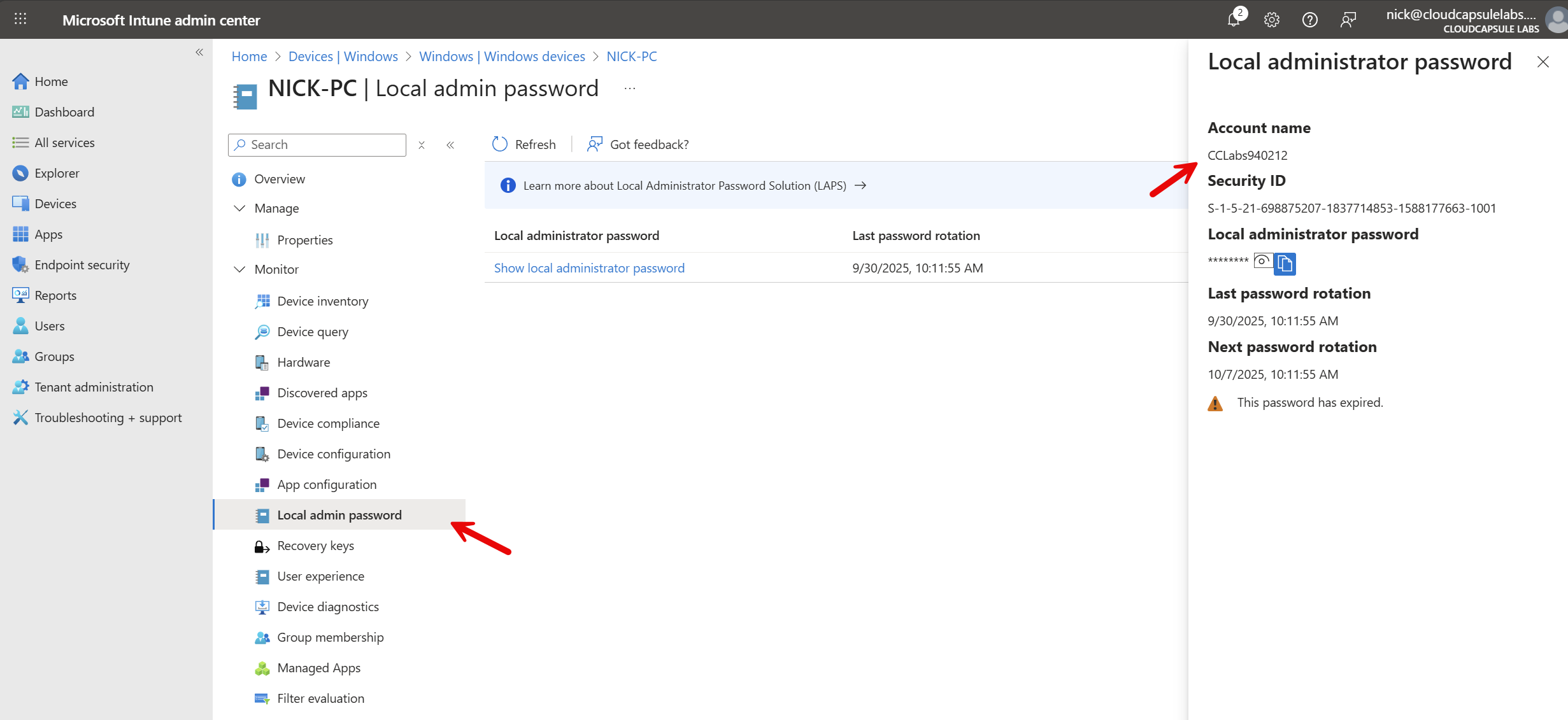
Back in the Intune Admin Center, go to:
Devices → [Device Name] → Local admin password
You’ll see:
-
Account name
-
Current password (hidden until revealed)
-
Last and next password rotation dates
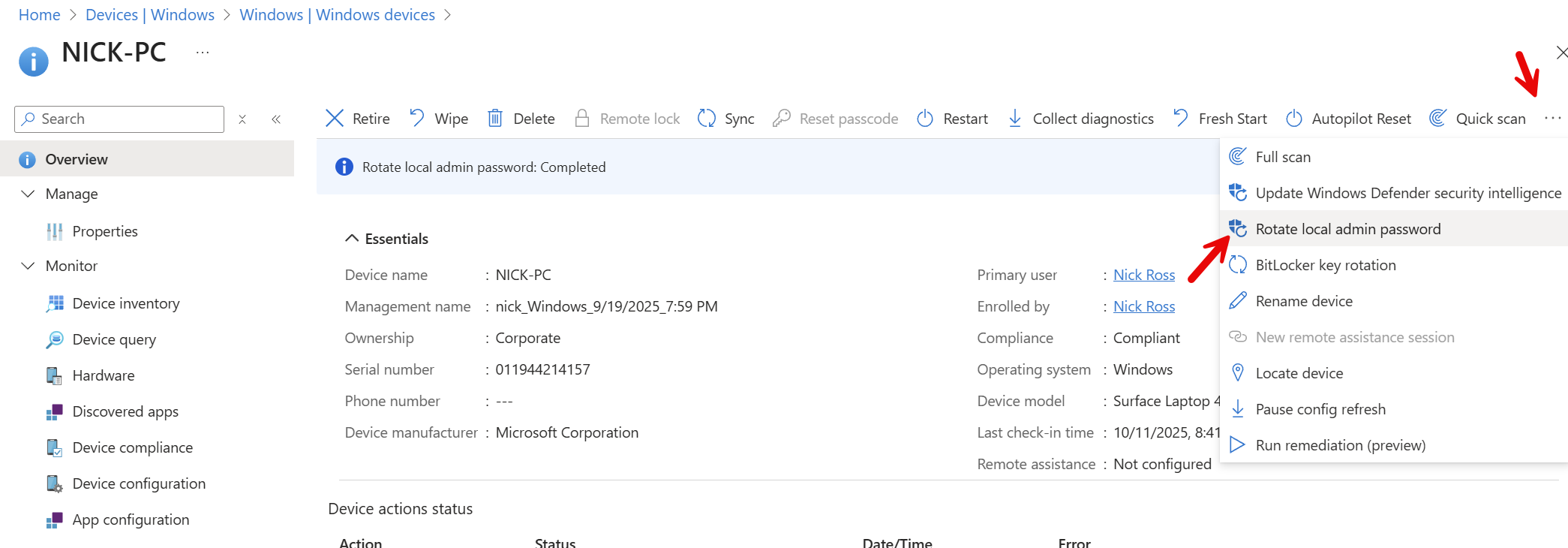
You can also manually rotate the password anytime under the device’s three-dot menu → Rotate local admin password.


Final Thoughts
LAPS for Intune gives IT administrators a scalable, cloud-native way to secure local admin accounts without relying on manual rotation or shared passwords. Combined with enforcing standard user permissions, it’s a foundational step in modern endpoint security.
4 min read
New Risk Remediation Settings in Conditional Access
Imagine this scenario.Your CFO signs into Microsoft 365 from Denver.Two minutes later, there is another successful login. This time it is...
15 min read
Upgrade your clients from Microsoft 365 Standard to Business Premium
NCE renewals are coming fast. Many small and mid-sized businesses are still running onMicrosoft 365 Business Standard, and in most cases...