


18 min read
What’s New in Microsoft 365 | November Updates | Ignite Highlights
Microsoft announced quite a few new features and licenses options during their annual Microsoft Ignite 2025 conference in San Francisco....
3 min read
Nick Ross
:
Mar 24, 2025 12:15:00 AM
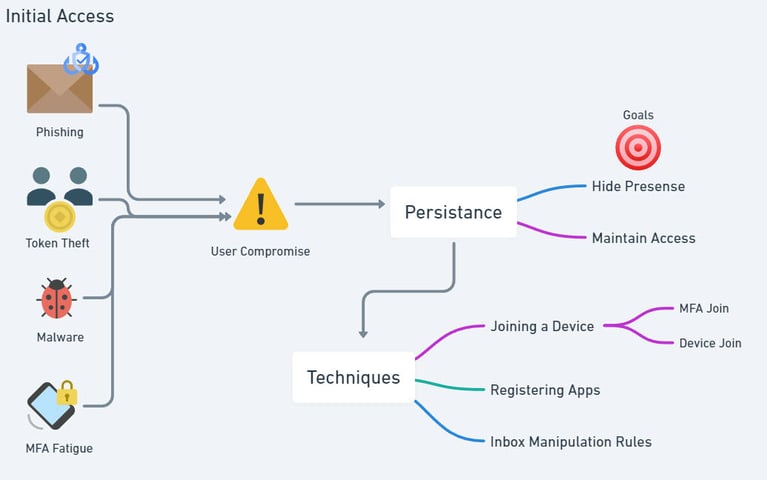
By default in Microsoft 365 Users can register or join any device into your active device inventory in Entra. Additionally, a common method of maintaining persistence for hackers is to join a device to Entra after initial user compromise to maintain persistence. In today’s article, I am going to show you my top policies for locking down device registrations to approved resources within your organization.
Without strict policies, allowing any user to register or join a device creates a “back door” for attackers who might compromise a user account. Here’s why this can be concerning:
Let’s dive into policies that can help secure your organization and prevent these vulnerabilities.


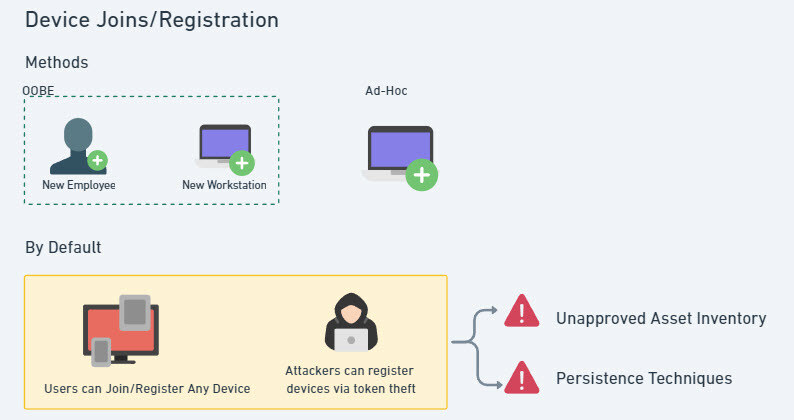
If we think about the common ways devices are joined or registered into Entra today, we really have two major workflows:
The key thing to note here is that when users sign into desktop applications on any device, they end up getting prompted to register their device with Entra without any type of approval workflow. This is what can lead to an unapproved asset inventory.

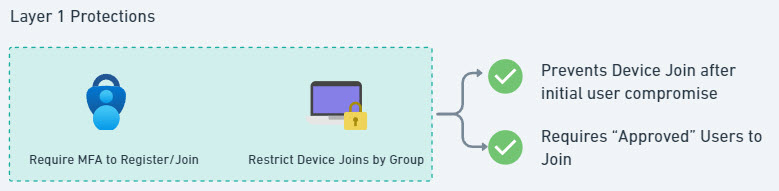
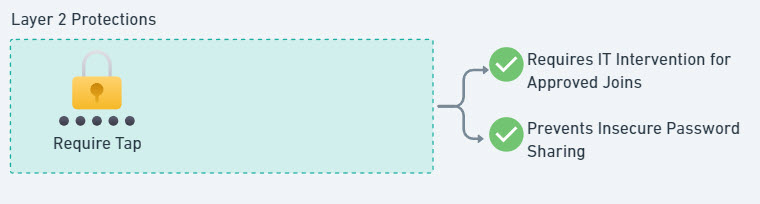
When I talk about “Layer 1” Protections, these are usually settings I usually try to enable by default in every tenant I manage. Layer 2 protections usually are a step up because they include:
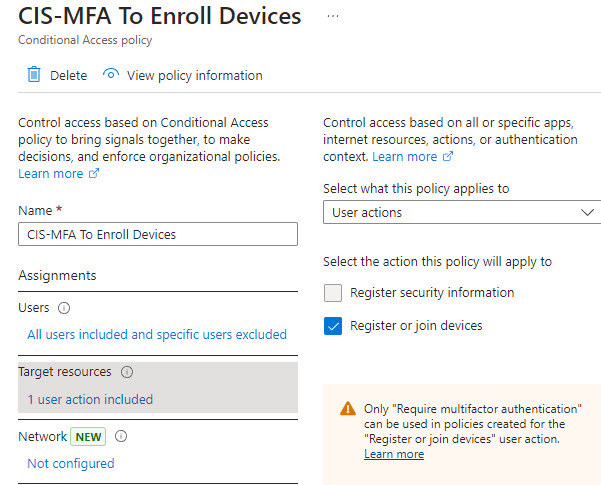
Adding Multi-Factor Authentication (MFA) for device registration is a simple yet effective way to stop unauthorized devices. By requiring an MFA prompt, even if an attacker has access to a compromised token (think of man-in-the-middle attacks, cookie hijacking, etc.), they’ll face a significant roadblock:

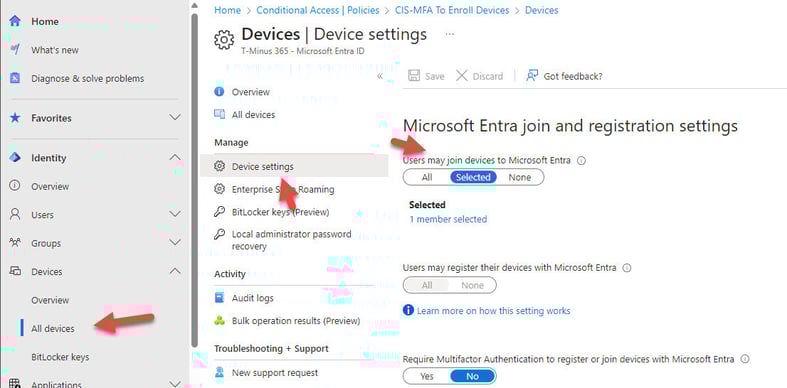
Restricting device joins to an “Approved Users” group helps limit who can add new devices. This control is especially useful for high-security environments or when dealing with contractors or temporary staff. You would have to have a process in place for your User onboarding workflow to temporarily add new hire to this group while they get their workstation set up. Here’s how to do it:


For a more secure approach, consider using a Temporary Access Pass (TAP) to authorize device registrations. This method not only reduces password sharing risks on initial new hire onboarding but also ensures each registration window is temporary and verified by IT. This would ensure that users can’t blindly register any device to Entra:
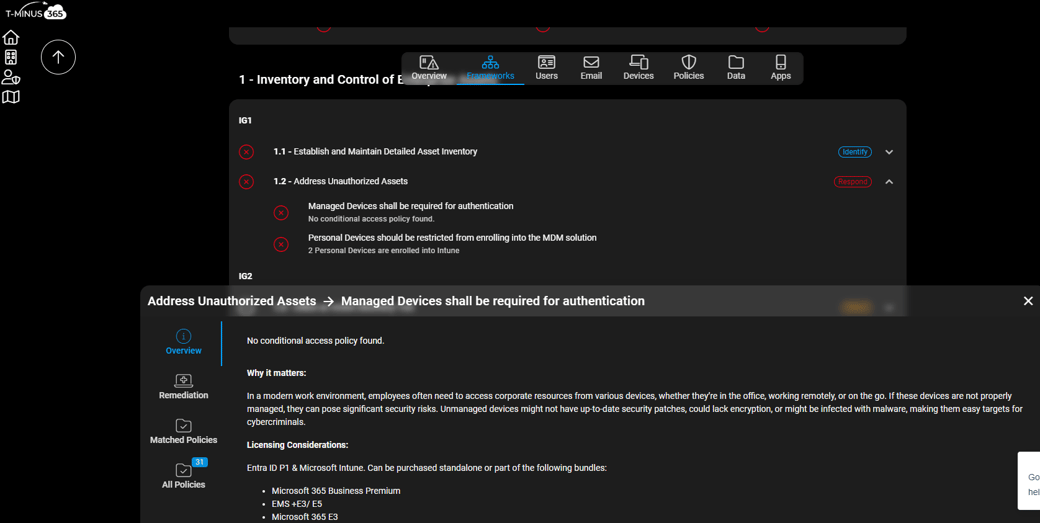
If you are looking for a tool to help you understand if you have these policies deployed across one to many tenants, check out a tool I built called CloudCapsule, which automates Microsoft 365 security assessments. You can get a tenant connected and within minutes, have a full security report mapped to the CIS Controls.

18 min read
Microsoft announced quite a few new features and licenses options during their annual Microsoft Ignite 2025 conference in San Francisco....
5 min read
Microsoft just dropped a brand-new Copilot SKU specifically for small and medium businesses. Lower cost, same Copilot capabilities. Let me...
16 min read
Windows Autopilot has been around for years, and many admins have built entire deployment processes around what we now call “Autopilot V1.”...