

3 min read

Secure Your GDAP Access with Just-in-Time Permissions

Secure Your GDAP Access with Just-in-Time Permissions


Most MSPs still run with standing access to customer tenants through GDAP. That’s convenient but dangerous. Switching to Privileged Identity Management (PIM) for Groups in Entra ID gives your techs just-in-time (JIT), time-bound access with MFA, approval, and auditing. This post shows you the “why,” the architecture, and the exact steps to deploy it with a practical tiered model.

Why Standing Access Is a Silent Risk

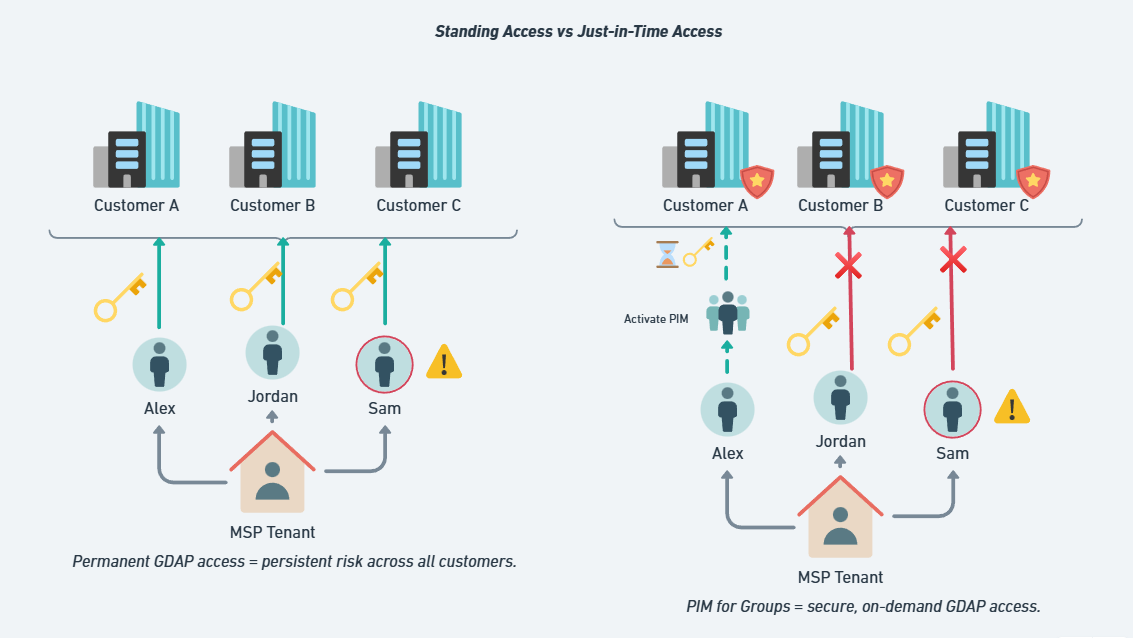
If you’re an MSP, you probably have GDAP relationships across dozens—maybe hundreds—of customer tenants. Your technicians often hold roles like Global Reader, Exchange Admin, Intune Admin, and sometimes (yikes) even Global Administrator. In many environments, those assignments are always on.

That convenience turns into a liability the moment a technician account is compromised (e.g., token theft or a successful AiTM phish). An attacker inherits the same 24/7 rights into every downstream tenant your team can reach. That’s how supply-chain risk propagates.

The fix: replace standing access with JIT access. Your engineers only activate the rights they need, when they need them, for a tightly controlled window, then those rights automatically expire.

blog_gdap_1


The Better Model: Just-in-Time Access with PIM for Groups

Privileged Identity Management (PIM) for Groups lets you:

  • Make technicians eligible for group membership (not permanent members)

  • Require activation with time limits, MFA, justification, and optional approval

  • Audit every activation (who, when, where, for how long)

Result: After hours, weekends, or holidays, your techs don’t have lingering rights into customer tenants. If a tech account is compromised, the attacker still has to activate access and your controls (MFA, approval, alerts) stand in the way.


Recommended Architecture: A Tiered Group Strategy

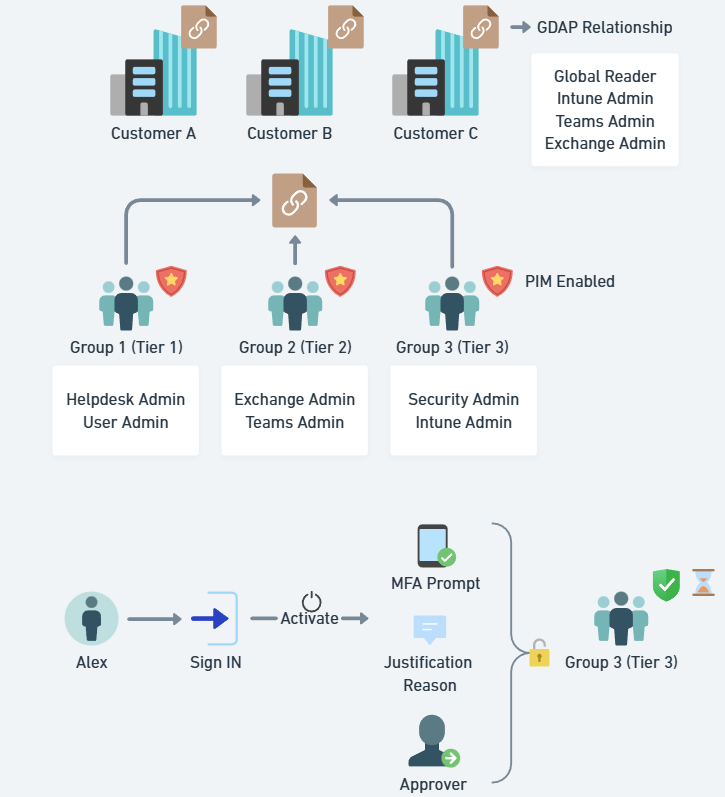
Create PIM-enabled groups that map to the real work your team does. Keep the least-privileged work easy, and escalate controls as permissions increase.

blog_gdap_2


Tier 1 — Everyday Helpdesk (low impact)

  • Examples: Password reset, basic user management, Global Reader

  • Controls: JIT activation, no approval, justification optional, 8–10 hour max duration (shift-length)

Tier 2 — Admin Workloads (moderate impact)

  • Examples: Exchange Admin, Teams Admin, Intune Admin

  • Controls: JIT activation, MFA + justification (ticket #), shorter 1–2 hour windows

Tier 3 — High Impact / Emergency (very high impact)

  • Examples: Security Admin; (avoid Global Admin here if possible)

  • Controls: JIT activation, MFA + justification + approval, ≤1 hour windows, enhanced notifications

Pro Tip: If you use tooling that creates one security group per permission (like CIPP), you can enable PIM on each group for the most granular, least-privilege model. It’s more setup work, but superb for risk containment.


Prerequisites

  • Licensing: Entra ID P2 (or Microsoft 365 E5) in your MSP tenant to use PIM for Groups.

  • GDAP relationships already established in Partner Center.

  • Clear understanding of the roles your team genuinely needs across tenants.


Step-by-Step: Configure PIM for Groups (MSP Tenant)

1) Create (or identify) your security group
  • Entra ID → Groups → New Group → Security

  • Name it clearly (e.g., GDAP-Tier1-Helpdesk, GDAP-Intune-Admins)

2) Enable PIM on the group
  • Entra ID → Privileged Identity Management → Groups -> Discover Grpi[s

  • Select your group → Enable PIM for this group

  • Set Assignment type = Eligible for technicians (not Active)

3) Configure activation settings (per Tier)
  • Activation duration:

    • Tier 1: up to a full shift (e.g., 8–10 hours)

    • Tier 2: 1–2 hours

    • Tier 3: ≤1 hour

  • Require Azure MFA: On (for all tiers)

  • Require justification / ticket number: On (Tier 2/3)

  • Require approval: On (Tier 3)

  • Notifications:

    • Keep Tier 1 quiet (avoid noise for daily activations)

    • Notify on Tier 2/3 activations and new assignments

Note: If a user has already satisfied MFA in their session, PIM may not prompt again during activation. That’s expected behavior. (Some admins wish it always re-prompts—today it respects existing MFA session claims.)


4) Map the group to customer tenants via GDAP
  • Partner Center → Customers → Granular admin relationships

  • Add your PIM-enabled security group to the relationship

  • Grant the specific roles (e.g., Directory Reader, User Admin, Intune Admin) the group should hold in that tenant

5) Technician activation flow (daily use)
  • Tech signs in → PIM → Groups → Activate

  • Provides justification / ticket number (if required)

  • Completes MFA and/or awaits approval (if required)

  • Works within the time window

  • Membership auto-expires (no cleanup needed)

Support Docs: Privileged Identity Management (PIM) for Groups – Microsoft Entra ID Governance | Microsoft Learn


Rollout Plan (Minimal Disruption)

  1. Start with one customer tenant and one tier (Tier 1).

  2. Document the flow (screenshots + a 60-second Loom/clip for your team).

  3. Collect feedback on friction points.

  4. Add Tier 2, then Tier 3 with approvals.

  5. Scale out across tenants once the process feels smooth.

Final Thoughts

PIM for Groups transforms how MSPs manage GDAP. You’ll reduce supply-chain risk, gain clear audit trails, and still keep your team moving fast. Start with Tier 1, prove the workflow, and then bring Tier 2/3 online with stronger controls

Secure Your GDAP Access with Just-in-Time Permissions

9 min read

Secure Your GDAP Access with Just-in-Time Permissions

Most MSPs still run with standing access to customer tenants through GDAP. That’s convenient but dangerous. Switching to Privileged Identity...

Read More
Defederating GoDaddy 365

17 min read

Defederating GoDaddy 365

If you bought Microsoft 365 through GoDaddy, you probably love how easy it was to get started, domain, email, and Office apps up and running...

Read More
What’s New in Microsoft 365 | November Updates | Ignite Highlights

18 min read

What’s New in Microsoft 365 | November Updates | Ignite Highlights

Microsoft announced quite a few new features and licenses options during their annual Microsoft Ignite 2025 conference in San Francisco....

Read More